SSZT185 march 2021
This is a guest technical article from Cadence® Design Systems.
So, you have designed a circuit and are ready to start your simulation. How do you begin?
To start, you need to define a simulation profile. Simulation profiles define the various aspects of a simulation or analysis for various simulators, including PSpice® for TI. Definitions may include the analysis you want to perform and the resources you want to use. Your simulator application will use the circuit you created in the schematic editor of your choice, as well as the profile, to run the simulation and give you tailored results.
This article will specifically explain how to create a simulation profile in the new PSpice for TI design and simulation tool. You can read more about this tool in the technical article, “How to simulate complex analog power and signal-chain circuits with PSpice for TI.”
Step No. 1: Create a simulation profile
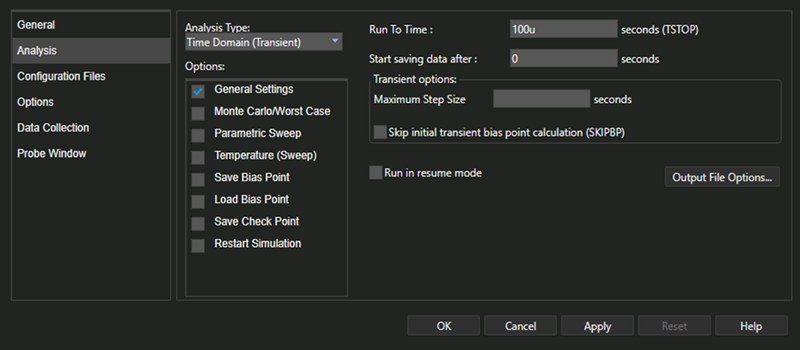 Figure 1 Simulation Settings
dialog
Figure 1 Simulation Settings
dialogPSpice for TI is a mathematical tool that provides a simple mechanism to perform some of the most complex tasks on the planet. However, you can always use netlist and simulation files instead of the easier graphical user interface (GUI) method described here. We will cover text-based simulation in a future installment of this series.
Step No. 2: Choose your analysis type
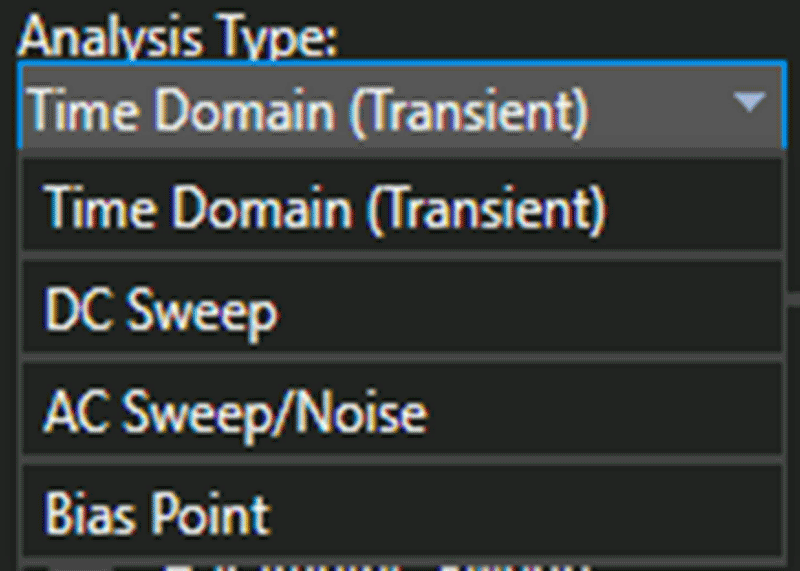 Figure 2 Analysis Type options
Here’s a guide to the analysis options:
- Time Domain (Transient): Select this option if you want to track voltages, currents and digital states over time.
- DC Sweep: Select this option if you want to calculate the bias point of a circuit or to sweep DC values by simulating the circuit many times.
- AC Sweep/Noise: Select this option if you are interested in small-signal response of the circuit (linearized around the bias point) when sweeping one or more sources over a range of frequencies.
- Bias Point: Select this option if you want node voltages and currents through the devices in the circuit.
Of course, depending on the analysis type, you have several options and parameters at your disposal. The default selection of options is usually good enough, but when necessary, you might benefit from the added power of several other advanced analyses supported by PSpice for TI – such as the Monte Carlo analysis, for example, to determine yield.
Step No. 3: Configure the correct files for simulation
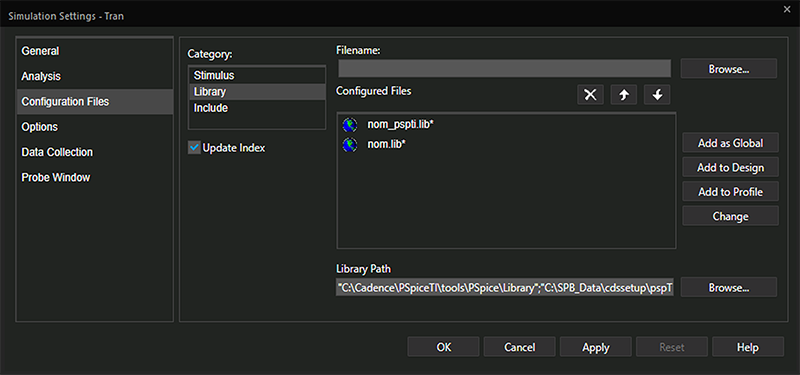 Figure 3 Configuration Files tab of the Simulation Settings dialog
For now, just ensure that the Library is configured correctly and accept the default for Stimulus and Include.
Step No. 4: Fine-tune options
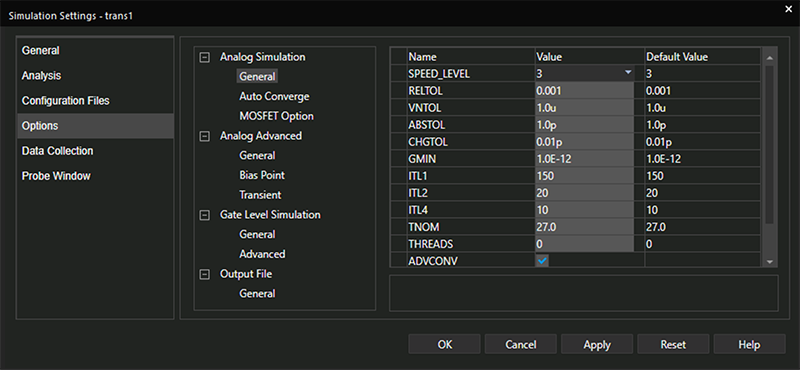 Figure 4 Options tab of the Simulation Settings dialog
Step No. 5: Optimize simulation data
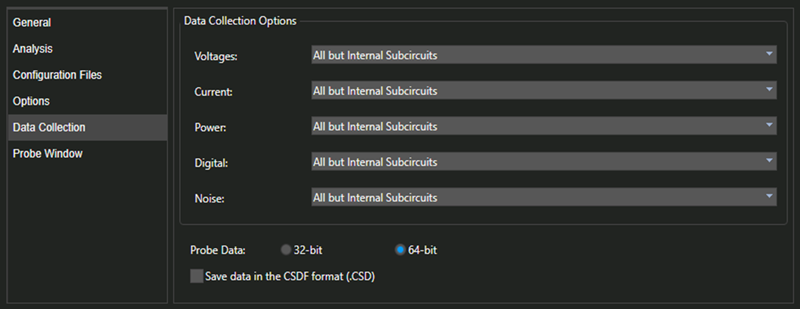 Figure 5 Data Collection tab of the
Simulation Settings Dialog
Figure 5 Data Collection tab of the
Simulation Settings DialogFor example, you can collect voltages only where a marker is located by specifying At Markers Only for Voltages, as shown in Figure 6, instead of the default, which is All but Internal Subcircuits.
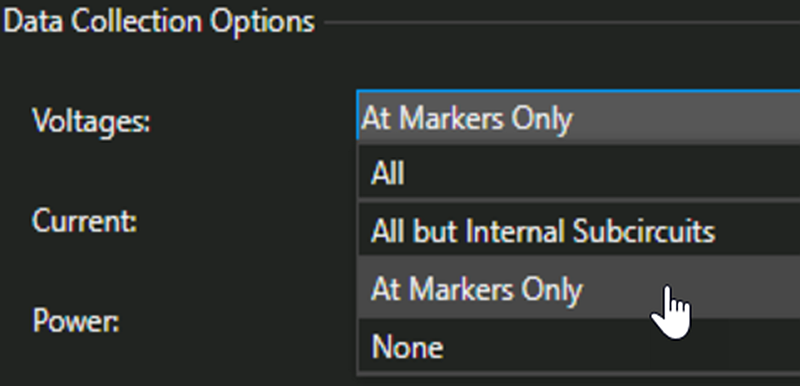 Figure 6 Options Available for Voltages
Most likely, you will want to use the defaults for this section as well.
Step No. 6: Set up your results display
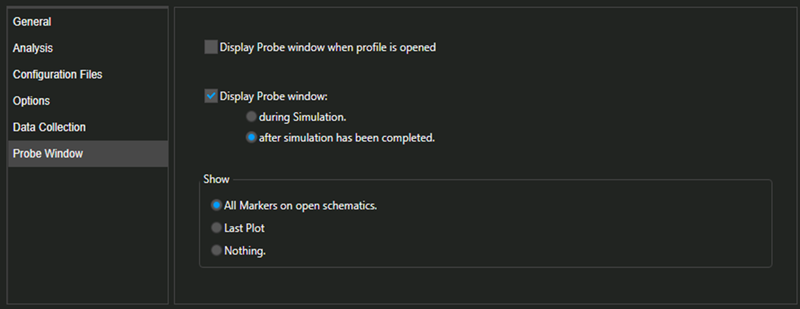 Figure 7 Probe Window tab of the
Simulation Settings dialog
Figure 7 Probe Window tab of the
Simulation Settings dialogConclusion
Read more in this series