SBAU431 July   2024 ADS1282


  1.   1
  2.   Description
  3.   Get Started
  4.   Features
  5.   Applications
  6.   6
  7. 1Evaluation Module Overview
    1. 1.1 Introduction
    2. 1.2 Performance Development Kit Contents
    3. 1.3 Specifications
    4. 1.4 Device Information
  8. 2Hardware
    1. 2.1  EVM Analog Input Options
    2. 2.2  Common-Mode Amplifier
    3. 2.3  Analog Input 1 Circuit
    4. 2.4  Analog Input 2 Amplifier
    5. 2.5  Voltage Reference
    6. 2.6  ADC Connections and Decoupling
    7. 2.7  Power Supplies
    8. 2.8  Low Dropout Regulators (LDO)
    9. 2.9  Flip-Flop/SYNC Circuit
    10. 2.10 Clocking
    11. 2.11 Serial Interface
    12. 2.12 EEPROM
  9. 3Software
    1. 3.1 Software Description
    2. 3.2 ADS1282 EVM Software Installation
  10. 4Implementation Results
    1. 4.1 EVM Operation
      1. 4.1.1 Evaluation Setup
      2. 4.1.2 EVM Register Settings
        1. 4.1.2.1 Channel Configuration
        2. 4.1.2.2 PGA Gain Selection
        3. 4.1.2.3 Data Rate Configuration
      3. 4.1.3 Time Domain Display
      4. 4.1.4 Spectral Analysis Display
      5. 4.1.5 Histogram Analysis Display
  11. 5Hardware Design Files
    1. 5.1 Schematics
    2. 5.2 PCB Layouts
    3. 5.3 Bill of Materials (BOM)
  12. 6Additional Information
    1. 6.1 Trademarks
  13. 7Related Documentation
    1. 7.1 Supplemental Content

ADS1282 EVM Software Installation

Download the latest version of the EVM GUI installer from the Tools and Software folder of the ADS1282EVM and run the GUI installer to install the EVM GUI software on your computer.

As shown in Figure 4-1, accept the license agreement and follow the on-screen instructions to complete the installation. If the LabVIEW™ run-time engine has not already been installed, then a prompt to accept this license agreement appears.

ADS1282V2EVM-PDK Software Installation and Prompts (1)Figure 3-1 Software Installation and Prompts (1)
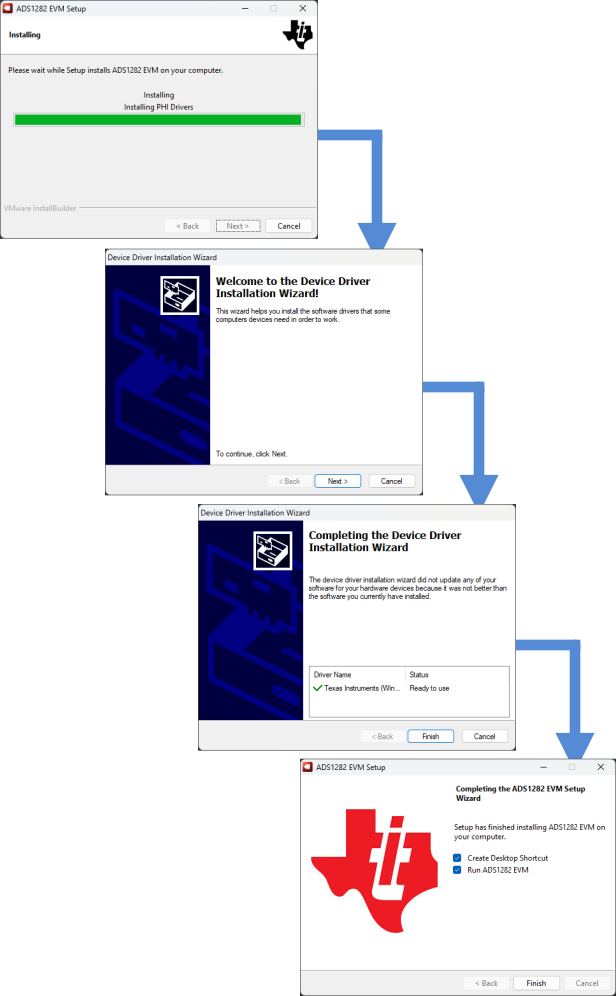
ADS1282V2EVM-PDK Software Installation and Prompts (2)Figure 3-2 Software Installation and Prompts (2)