SLVUCP9B November   2023  – October 2025 TPS25751


  1.   1
  2.   Description
  3.   Get Started
  4.   Features
  5.   Applications
  6.   6
  7. 1Evaluation Module Overview
    1. 1.1 Introduction
    2. 1.2 Kit Contents
    3. 1.3 Specification
    4. 1.4 Device Information
  8. 2Hardware
    1. 2.1 Power Requirements
    2. 2.2 Setup
    3. 2.3 Header Information
    4. 2.4 Jumper Information
    5. 2.5 LED Information
    6. 2.6 Test Points
    7. 2.7 Switches and Push-Buttons
  9. 3Software
    1. 3.1 Software Description
      1. 3.1.1 Software Installation
      2. 3.1.2 Web Browser
      3. 3.1.3 Native Application
    2. 3.2 Software Development
    3. 3.3 Using the TPS25751 Application Customization Tool
      1. 3.3.1 Default View
      2. 3.3.2 Selecting a Configuration
      3. 3.3.3 Filling Out the Questionnaire
      4. 3.3.4 Advanced Configuration Mode
      5. 3.3.5 Flashing Configuration onto EVM
      6. 3.3.6 Additional Settings
        1. 3.3.6.1 Generating a New Configuration
        2. 3.3.6.2 Exporting and Importing Settings
        3. 3.3.6.3 Generating the Binary
        4. 3.3.6.4 Generating the VIF File
  10. 4Application Specific Use Case
    1. 4.1 Application Specific General Overview
    2. 4.2 TPS4S201 Short-to-Vbus Protection
    3. 4.3 TPS25751EVM and BQ257xxEVM Setup
      1. 4.3.1 Setting up with BQ25756(E)EVM
        1. 4.3.1.1 Hardware Setup with BQ25756(E)EVM
        2. 4.3.1.2 Software Setup with BQ25756(E)EVM
      2. 4.3.2 Setting up with BQ25792EVM or BQ25798EVM
        1. 4.3.2.1 Hardware Setup with BQ25792EVM and BQ25798EVM
        2. 4.3.2.2 Software Setup with BQ25792EVM and BQ25798EVM
      3. 4.3.3 Setting up with BQ25731EVM
        1. 4.3.3.1 Hardware Setup with BQ25731EVM
        2. 4.3.3.2 Software Setup with BQ25731EVM
      4. 4.3.4 Setting up With BQ25713EVM
        1. 4.3.4.1 Hardware Setup with BQ25713EVM
        2. 4.3.4.2 Software Setup with BQ25713EVM
    4. 4.4 Liquid Detection and Corrosion Mitigation Overview
      1. 4.4.1 Liquid Detection and Corrosion Mitigation Hardware Setup
      2. 4.4.2 Liquid Detection and Corrosion Mitigation Software Setup
  11. 5Hardware Design Files
    1. 5.1 Schematics
    2. 5.2 PCB Layouts
    3. 5.3 Bill of Materials (BOM)
  12. 6Additional Information
    1. 6.1 Trademarks
    2. 6.2 Electrostatic Discharge Caution
    3. 6.3 Terminology
    4. 6.4 Device Support
      1. 6.4.1 Third-Party Products Disclaimer
      2. 6.4.2 Supplemental Content
    5. 6.5 Documentation Support
      1. 6.5.1 Documentation Support
    6. 6.6 Receiving Notification of Documentation Updates
    7. 6.7 Support Resources
  13. 7Revision History

Exporting and Importing Settings

To save the current tool settings including the current configuration of the device as indicated by the form, click on the Export drop-down button on the top-right side of the tool and click on Export settings. This opens a window where the user changes the file name of the settings. Enter a file name and click Export to export a JSON file.

TPS25751EVM Export Settings in Application
                    Customization Tool Figure 3-11 Export Settings in Application Customization Tool

To import current tool settings including the current configuration of the device as indicated by the form, click the Import settings button on the top-right side of the tool. Select from the directory where the JSON setting file is and click the Import File button. The settings are restored in the Application Customization Tool.
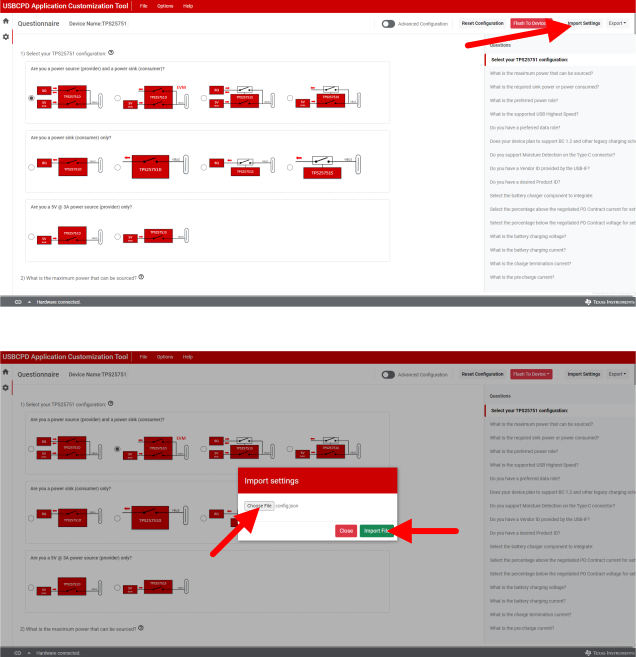
TPS25751EVM Import Settings in Application
                    Customization Tool Figure 3-12 Import Settings in Application Customization Tool