SNVU932A March   2025  – August 2025 LP5814 , LP5814I , LP5815


  1.   1
  2.   Description
  3.   Get Started
  4.   Features
  5.   Applications
  6.   6
  7. 1Evaluation Module Overview
    1. 1.1 Introduction
    2. 1.2 Kit Contents
    3. 1.3 Device Information
  8. 2Hardware
    1. 2.1 Setup
    2. 2.2 Jumper Information
  9. 3Software
    1. 3.1 Software Description
    2. 3.2 Graphical User Interface (GUI) Installation
    3. 3.3 Graphical User Interface (GUI) Guidance
      1. 3.3.1 Hardware Connection
      2. 3.3.2 Start Page
      3. 3.3.3 Hardware Setup Page
      4. 3.3.4 Home Page
      5. 3.3.5 LED Control Page
        1. 3.3.5.1 Turn ON LED in Manual Mode
        2. 3.3.5.2 Turn On LED in Autonomous Mode
      6. 3.3.6 Enter and Exit Shutdown Mode
      7. 3.3.7 Read Flags
  10. 4Hardware Design Files
    1. 4.1 Schematics
    2. 4.2 PCB Layouts
    3. 4.3 Bill of Materials (BOM)
  11. 5Additional Information
    1. 5.1 Trademarks
  12. 6Revision History

Graphical User Interface (GUI) Installation

The LP581x_RUKA GUI software is downloaded from the link: LP581x_RUKA GUI.

On the Gallery page as shown in Figure 3-1, click the blank part of the panel to open the online version or click the Download button and select the platform to install the offline version to the user's computer.
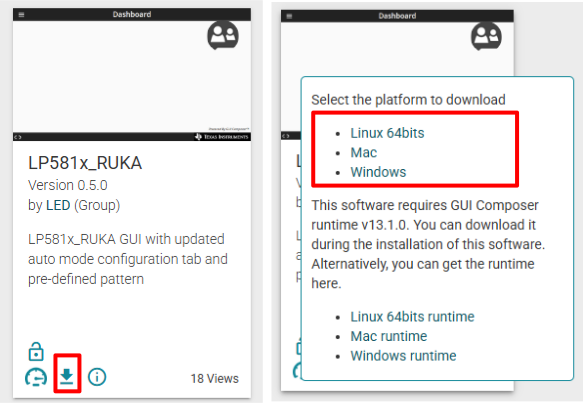
LP5814DRLEVM, LP5815DRLEVM, LP5814YCHEVM and LP5815YCHEVM GUI Download Page Figure 3-1 GUI Download Page

For the offline version, after the download completed, extract the file and double click the exe application file to start the installation. Then follow the setup wizard to complete the installation, during which the license has to be accepted and all the default settings are kept. The installation takes about several ten minutes depends on the network speed.

Figure 3-2 appears to prompt that the offline version is installed successfully. Click the Finish button to start the GUI evaluation.

LP5814DRLEVM, LP5815DRLEVM, LP5814YCHEVM and LP5815YCHEVM Last Step of Installing GUI
                                        Successfully Figure 3-2 Last Step of Installing GUI Successfully