SPRADM0 August 2025 F28E120SC , F29H850TU , F29H859TU-Q1 , TMS320F2800132 , TMS320F2800133 , TMS320F2800135 , TMS320F2800137 , TMS320F2800152-Q1 , TMS320F2800153-Q1 , TMS320F2800154-Q1 , TMS320F2800155 , TMS320F2800155-Q1 , TMS320F2800156-Q1 , TMS320F2800157 , TMS320F2800157-Q1 , TMS320F280021 , TMS320F280021-Q1 , TMS320F280023 , TMS320F280023-Q1 , TMS320F280023C , TMS320F280025 , TMS320F280025-Q1 , TMS320F280025C , TMS320F280025C-Q1 , TMS320F280033 , TMS320F280034 , TMS320F280034-Q1 , TMS320F280036-Q1 , TMS320F280036C-Q1 , TMS320F280037 , TMS320F280037-Q1 , TMS320F280037C , TMS320F280037C-Q1 , TMS320F280038-Q1 , TMS320F280038C-Q1 , TMS320F280039 , TMS320F280039-Q1 , TMS320F280039C , TMS320F280039C-Q1 , TMS320F280040-Q1 , TMS320F280040C-Q1 , TMS320F280041 , TMS320F280041-Q1 , TMS320F280041C , TMS320F280041C-Q1 , TMS320F280045 , TMS320F280048-Q1 , TMS320F280048C-Q1 , TMS320F280049 , TMS320F280049-Q1 , TMS320F280049C , TMS320F280049C-Q1 , TMS320F28075 , TMS320F28075-Q1 , TMS320F28374D , TMS320F28374S , TMS320F28375D , TMS320F28375S , TMS320F28375S-Q1 , TMS320F28376D , TMS320F28376S , TMS320F28377D , TMS320F28377D-EP , TMS320F28377D-Q1 , TMS320F28377S , TMS320F28377S-Q1 , TMS320F28379D , TMS320F28379D-Q1 , TMS320F28379S , TMS320F28384D , TMS320F28384S , TMS320F28386D , TMS320F28386S , TMS320F28388D , TMS320F28388S , TMS320F28P550SG , TMS320F28P550SJ , TMS320F28P559SG-Q1 , TMS320F28P559SJ-Q1 , TMS320F28P650DH , TMS320F28P650DK , TMS320F28P650SH , TMS320F28P650SK , TMS320F28P659DH-Q1 , TMS320F28P659DK-Q1 , TMS320F28P659SH-Q1
7.1 Communication Logger Walk-through
A high level view of the communication logger feature and all the layers involved from Table 3-1 is shown below. The Communication Logger feature displays each element of the received FSI frame in a seperate column of the logging table in the Control Center GUI. The steps needed to add this functionality to a CCS project are described in the following walk-through.
Software Layers
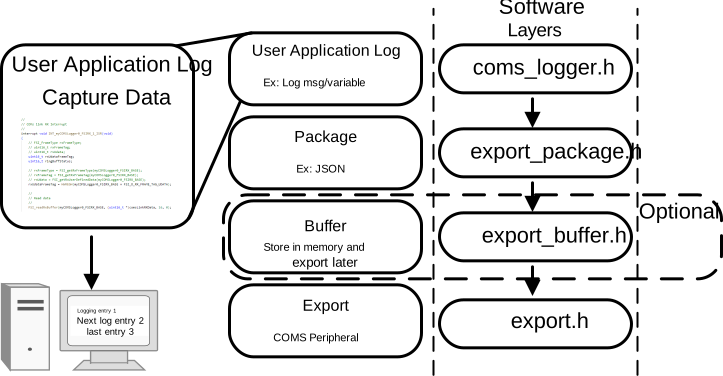 Figure 7-2 Communication Logger Software Layer
Sysconfig Configurations
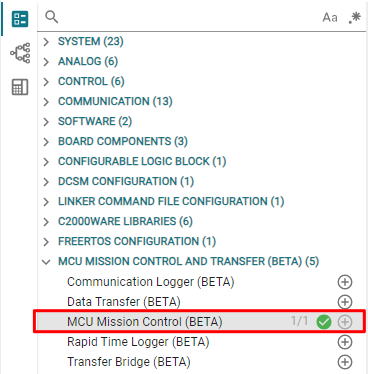 Figure 7-3 MCU Control Center Module
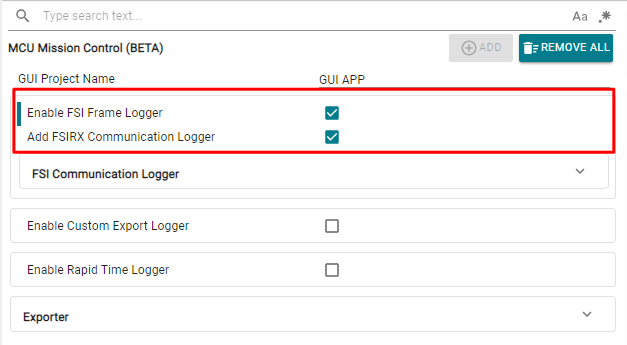 Figure 7-4 Enable FSI Logger and
Communication Logger
Figure 7-4 Enable FSI Logger and
Communication Logger 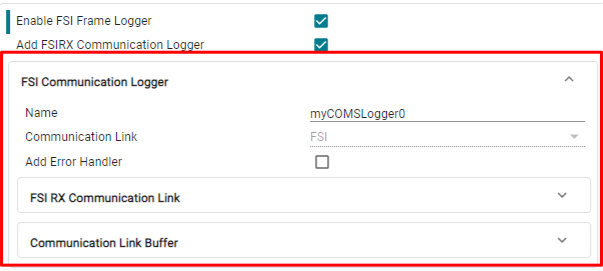 Figure 7-5 FSI Communication Logger
Configurations
Figure 7-5 FSI Communication Logger
Configurations Include Files
//
// Included Files
//
...
#include "export/export.h"
#include "logger/coms_logger.h"
Communication Logger Initialization
//
// Logging Inits
//
EXPORT_init();
COMSLOG_init();
Communication Logger Application Code
while(1)
{
    COMSLOG_transferBufferData();
}
Communication Logger Error Handling (Optional)
void COMSLOG_transferBufferOverflow() {

    //
    // Received too much data too quickly. The transfer buffer overflowed
    // Make the buffer larger
    //
    ESTOP0;

}

void COMSLOG_comsLinkError(uint16_t status) {

    //
    // FSI receive error occurred
    // Bad frames received
    //
    ESTOP0;
}
Build the Project
Build the communication logger application code, and make sure to follow the steps in Section 4 to generate the GUI inside CCS.
Testing the Communication Logger Tool
- Flash the Communication Logger application to the bridge device
- Connect the bridge device's FSIRX pins to the
primary device FSITX pins
- Connect primary device FSITX_CLK to bridge device FSIRX_CLK
- Connect primary device FSITX_D0 to bridge device FSIRX_D0
- Connect primary device FSITX_D1 to bridge device FSIRX_D1 (optional - if dual data lane is configured in Frame Configuration)
- Connect the bridge device to the PC by using the USB connector
- Run the Application Logger application project on the primary device
- Open the generated GUI from inside CCS
- The final output appears as shown below
 Figure 7-6 Final Output