SBAU395 april 2023
- Introduction
- 1Trademarks
- 2Required Equipment
-
3Setup Procedure
- 3.1 Installing the High Speed Data Converter (HSDC) Pro Software
- 3.2 Installing the DAC39RF10EVM Configuration GUI Software
- 3.3 Connect the DAC39RF10EVM and TSW14J59EVM
- 3.4 Connect the Power Supplies to the Boards (Power Off)
- 3.5 Connect the Spectrum Analyzer to the EVM
- 3.6 Turn On the TSW14J59EVM Power and Connect to the PC
- 3.7 Turn On the DAC39RF10EVM Power Supplies and Connect to the PC
- 3.8 Turn On the Signal Generator RF Outputs
- 3.9 Launch the DAC39RF10EVM GUI and Program the DAC EVM
- 3.10 Programming the NCO
- 3.11 Launch the HSDCpro Software and Load the FPGA Image to the TSW14J59EVM
- 4Device Configuration
- 5Troubleshooting the DAC39RF10EVM
- 6References
- 7Appendix
3.2 Installing the DAC39RF10EVM Configuration GUI Software
- If installing the DAC gui for the first time, please download and install the FTDI drivers from FTDI website.
Restarting the PC may be required after installing the driver.
- Download the Configuration GUI software from the EVM tool folder at DAC39RF10EVM GUI.
- Extract files from the .zip file.
- Run the executable file (
DAC39RF10.exe).
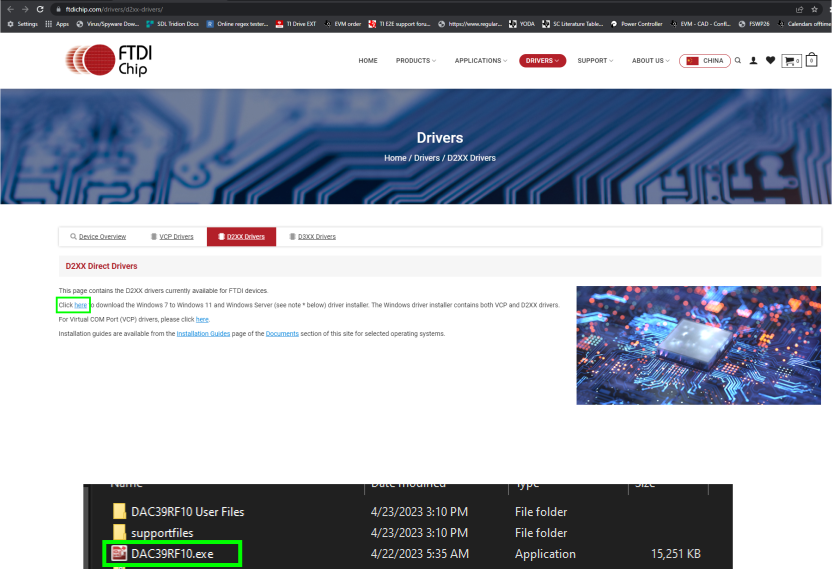 Figure 3-2 FTDI website to download and install the driver.