SNLU223D August 2017 – February 2023 DS90UB954-Q1
- DS90UB954-Q1EVM Deserializer User's Guide
- 1 Trademarks
- 2 Introduction
- 3 Quick Start Guide
- 4 DS90UB954-Q1EVM Board Configuration
- 5 Enable and Reset
- 6 Use with DS90UB936-Q1
- 7 Typical Connection and Test Equipment
- 8 Termination Device
- 9 Typical Test Setup
- 10Equipment References
- 11Cable References
- 12Software for DS90UB954Q1-EVM Evaluation - Analog LaunchPAD (ALP) Software Setup
- 13Using ALP and DS90UB954 Profile
- 14Troubleshooting ALP Software
- 15DS90UB954-Q1EVM PCB Schematics, Layout and Bill of Materials - DS90UB954-Q1EVM Schematic
- 16DS90UB954-Q1 EVM PCB Layout
- 17DS90UB954-Q1EVM Bill of Materials
- 18Revision History
12.4 Startup - First Launch
Make sure all the software has been installed and the hardware is powered on and connected to the PC. Execute “Analog LaunchPAD” shortcut from the start menu. The default start menu location is under All Programs > Texas Instruments > Analog LaunchPAD vx.x.x > Analog LaunchPAD to start MainGUI.exe.
 Figure 12-1 Launching ALP Splash Screen
Upon first launch of the Analog LaunchPAD utility, the default device will be DS90UB925. The active device can be seen as highlighted in #SNLU2234207, here showing the DS90UB954 as active. If the active device is already set to DS90UB954 you may skip to GUID-DB97BE2B-5271-4584-B672-369F28C75A42.html#GUID-DB97BE2B-5271-4584-B672-369F28C75A42.
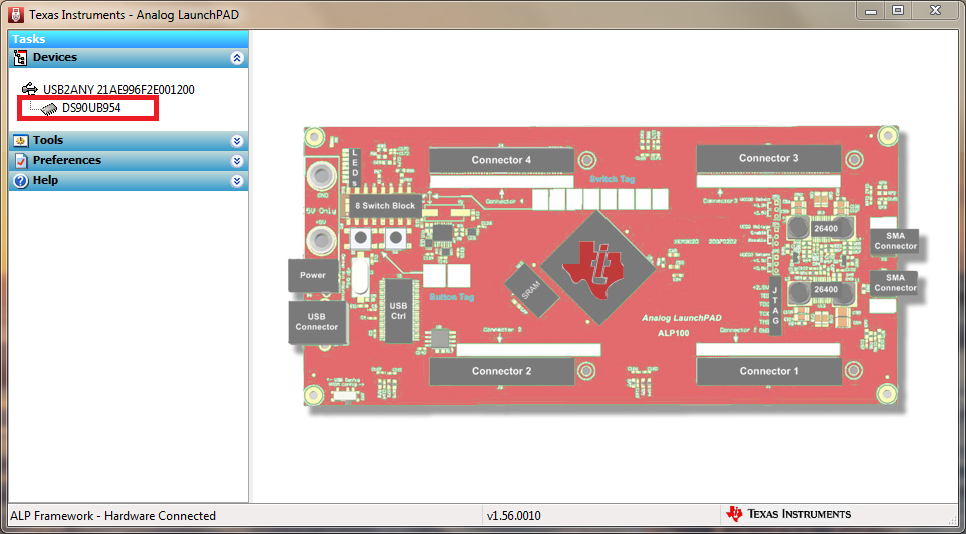 Figure 12-2 Initial ALP Screen
Follow the steps beginning with #T4697723-17 to change the ALP profile to DS90UB954.
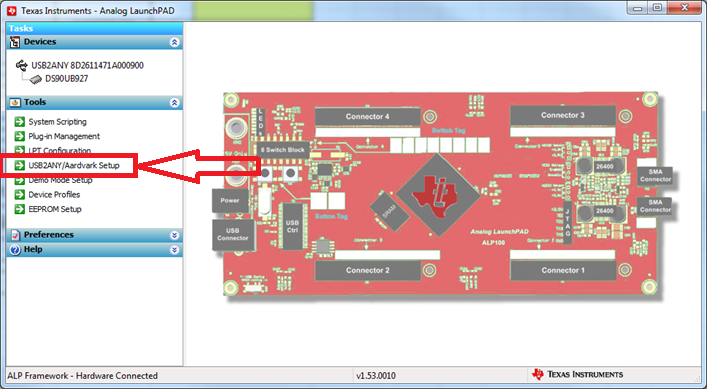 Figure 12-3 Select USB2ANY/Aardvark Setup to Change Profile
Select the active profile and click "Remove". Scroll down the list of available profiles to DS90UB954, click to highlight it, click "Add", and click "Ok".
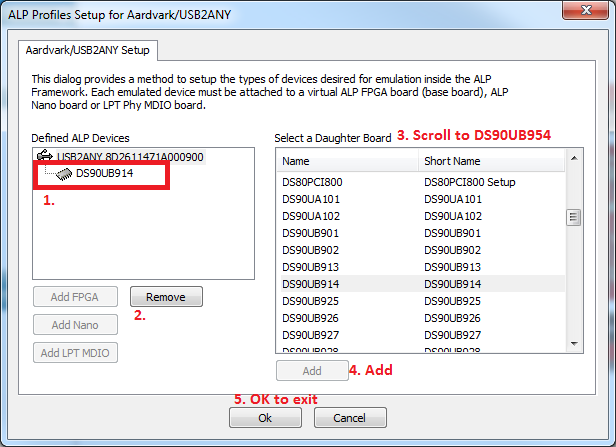 Figure 12-4 ALP Profiles Dialog
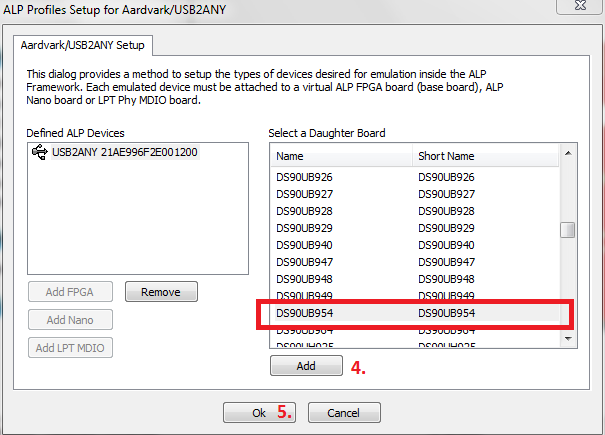 Figure 12-5 ALP Profiles Dialog (continued)