SPRAD86A March 2023 – May 2024 AM62A1-Q1 , AM62A3 , AM62A3-Q1 , AM62A7 , AM62A7-Q1 , AM67A , AM68A , AM69A
- 1
- Abstract
- Trademarks
- 1 Introduction
- 2 Tuning Overview
- 3 Hardware Requirement
- 4 Software Requirement
- 5 Sensor Software Integration
- 6 Tuning Procedure
- 7 Perform Basic Tuning
- 8 Perform Fine Tuning
- 9 Live Tuning
- 10Summary
- 11Revision History
7.6.2 Tuning AWB
After raw images are captured, start the AWB tuning from the Plug-ins drop-down menu. Import the raw images one by one in the Reference files tab (see the AWB plug-in guide for details) and enter the parameter values for each image:
- Color Temperature: this must be what is used when capturing the raw image. For example, the value is 6500 for the D65 lighting condition.
- Exposure, Gain, and Aperture: these values are not used for AWB; therefore, these values can be ignored.
- Black Level: this must be the pedestal value that was measured in the Black Level Subtraction plug-in. In this example, IMX219 has a measured black level of 63 in 10-bit mode.
Pay special attention when selecting the corners of the color checker chart:
- Starting with the upper left corner, click on the four corners of the color checker chart in clockwise order.
- After the four corners are selected, the tool automatically identifies the 24 patches and displays the selection of each patch as shown below.
Figure 7-15 through Figure 7-16 show an example of importing one raw image for AWB tuning.
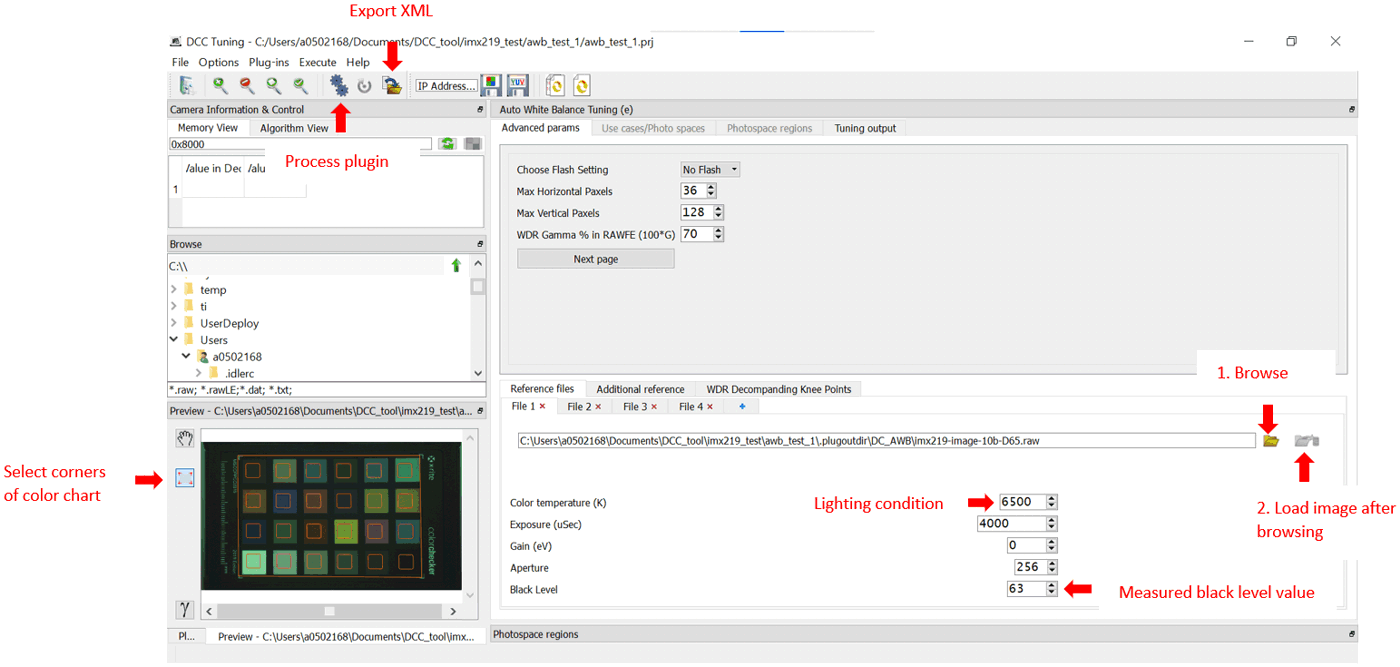 Figure 7-15 Auto White Balance
Tuning
Figure 7-15 Auto White Balance
Tuning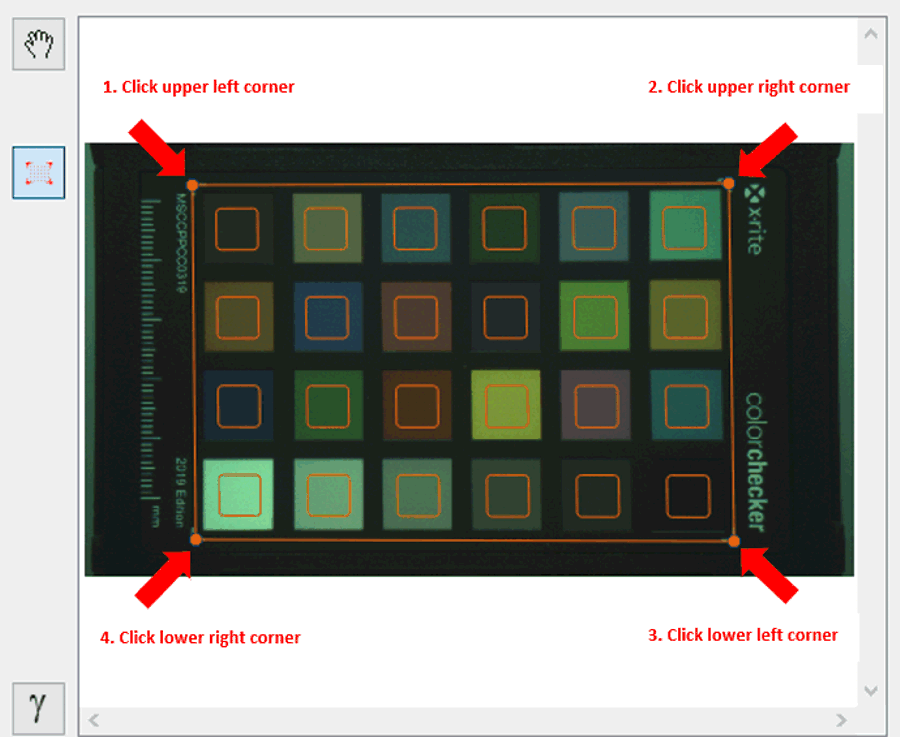 Figure 7-16 Choosing Corners of Color
Checker Chart
Figure 7-16 Choosing Corners of Color
Checker ChartAfter importing all raw images, follow the AWB plug-in guide to do the tuning. If tuning is successful, reference Cb-Cr plot scheme is displayed. Below is the result plot using the raw images shown above.
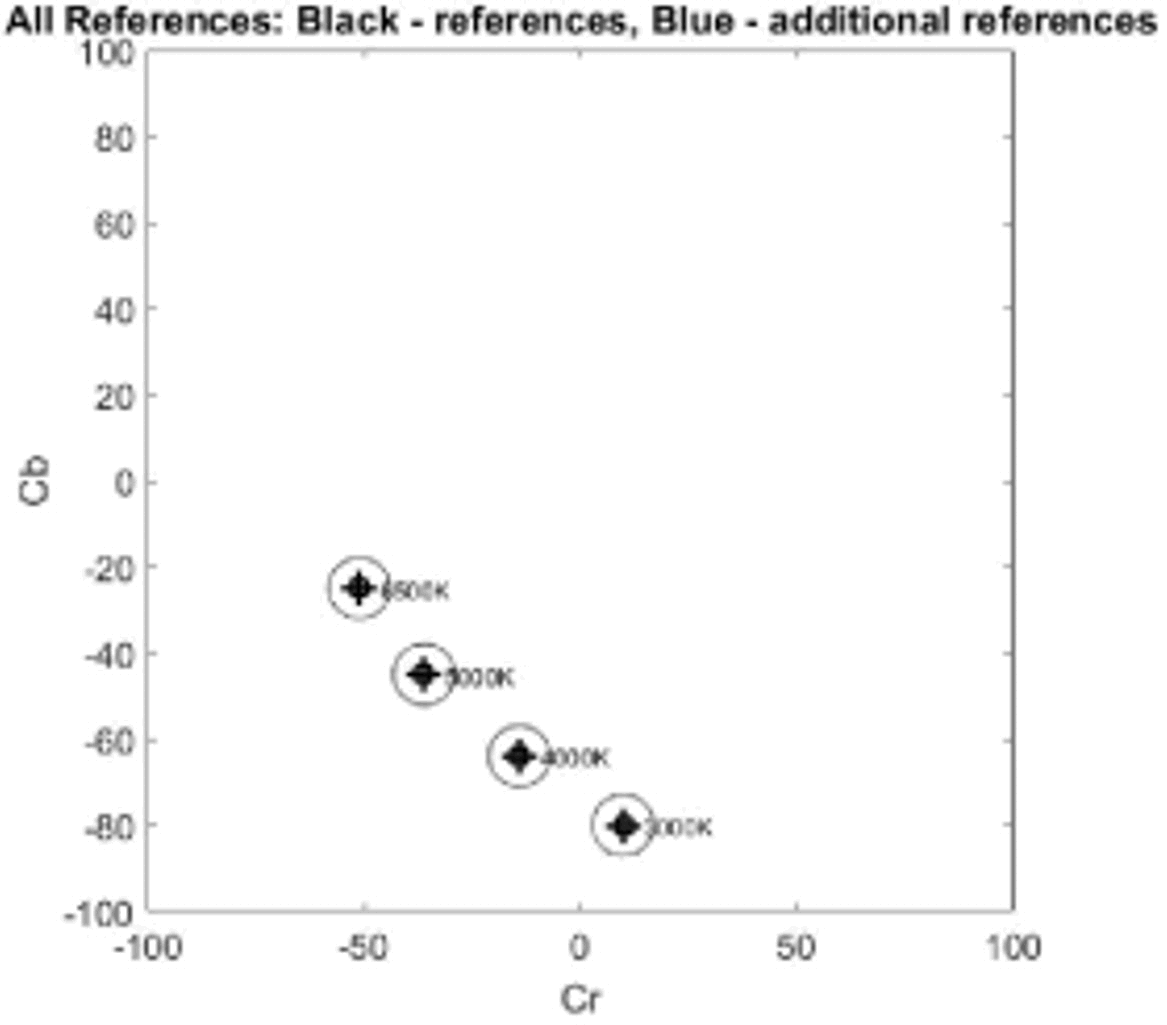 Figure 7-17 Auto White Balance Tuning
Results
Figure 7-17 Auto White Balance Tuning
ResultsAfter tuning is done, generate new output XML files and new binary files as done in tuning Black Level Subtraction. Then use the newly-generated DCC binary files to stream and capture. Figure 7-18 and Figure 7-19 show images captured before AWB tuning and after AWB tuning (all gray patches appear neutral in the image after AWB tuning).
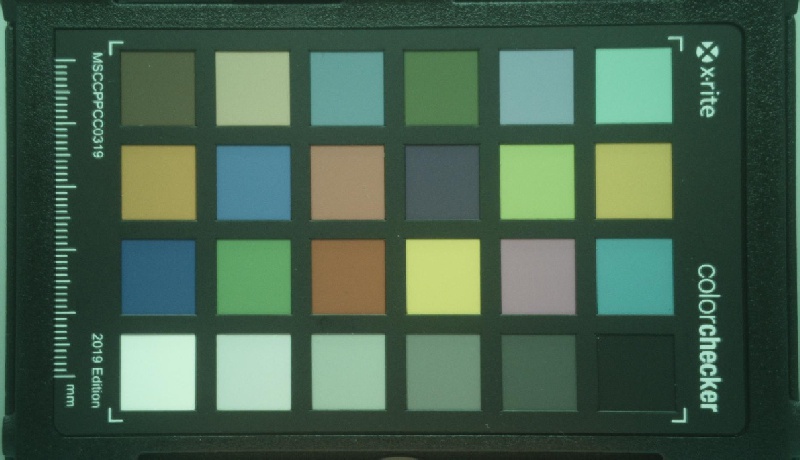 Figure 7-18 Image Before Auto White
Balance Tuning
Figure 7-18 Image Before Auto White
Balance Tuning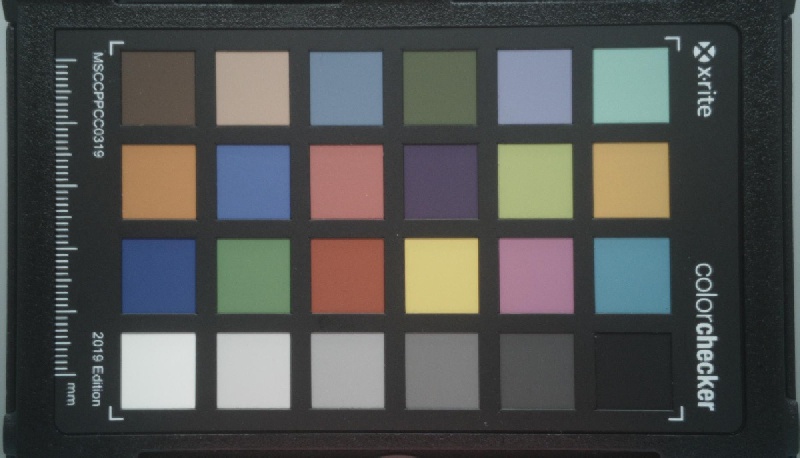 Figure 7-19 Image After Auto White
Balance Tuning
Figure 7-19 Image After Auto White
Balance Tuning