SLAU833A May 2020 – October 2020
7.3 Viewing the Captured Data With High-Speed Data Converter Pro GUI
This section provides instructions for viewing the captured data with the HSDC Pro GUI.
Open the HSDC Pro GUI and click ‘OK’ on the box that pops up. The HSDC Pro GUI is primarily used as a display tool. It is not collecting data, so there is no board to connect to.
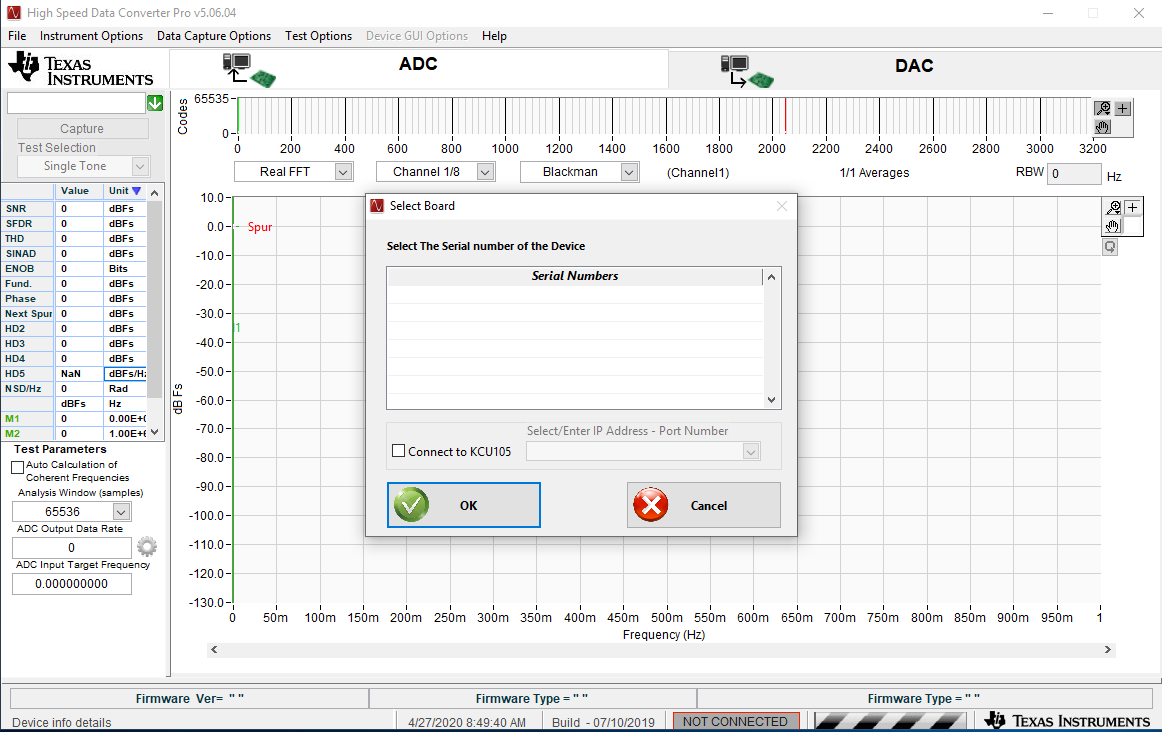 Figure 7-13 HSDC PRO GUI
Set the ADC Output Data Rate to the appropriate number (6.2G in this case) in the ADC Output Data rate box in the lower left of the GUI.
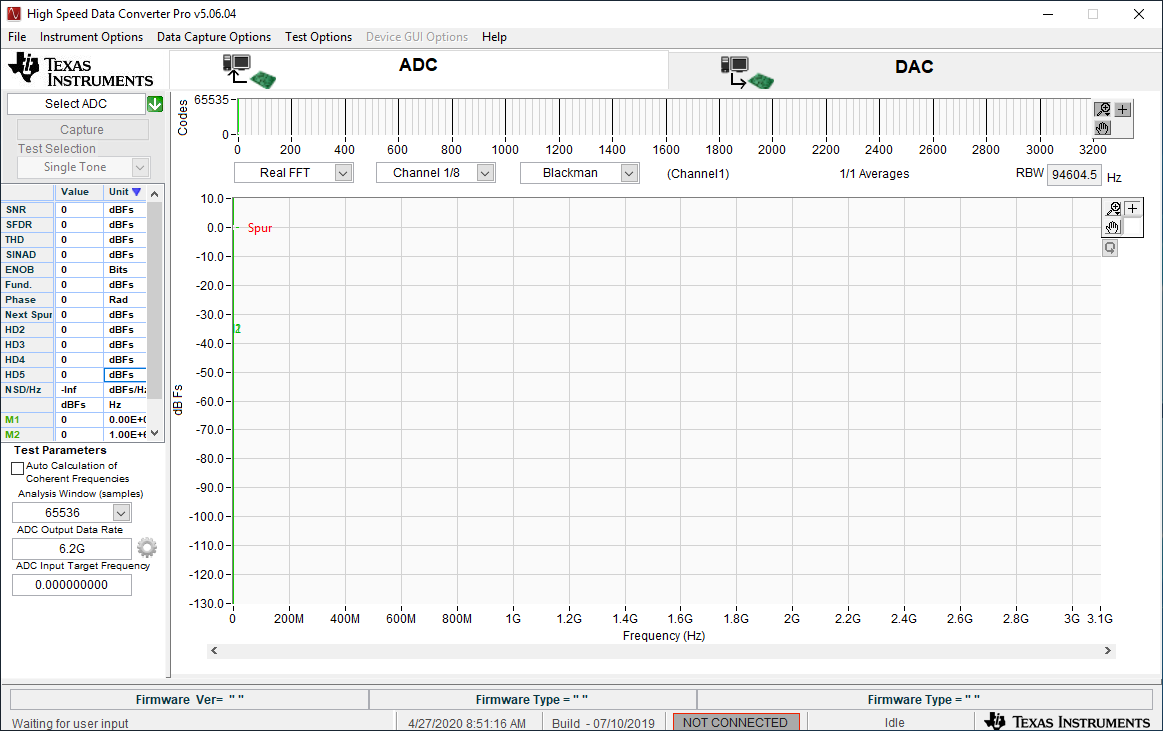 Figure 7-14 Enter ADC Sampling Rate
Open a Microsoft®Windows® file browser and carry out the following:
- Navigate to C:\AlphaData_ADC12DJ3200_Demo\GUI Utility Version 1.0
- Launch “ILA Analyser”
- Set the Capture data Folder Path as Figure 7-15 shows.
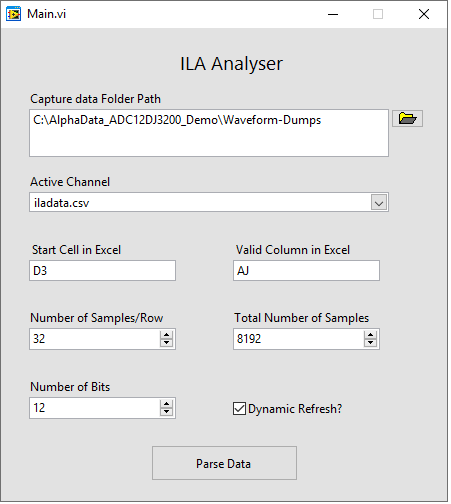 Figure 7-15 ILA Analyser
 - Fill in the rest of the values
- With Dynamic Refresh selected, the analyzer will do continuous captures. Unselecting this box will only do a one time capture. This should be selected.
Note:
Use the Active Channel drop-down to explicitly select the iladata.csv file (even if it is displayed by default). Otherwise, the tool may show error symbols on the rest of the fields (as it has not parsed the file yet to map the fields to its internal parameters).
Click on “Parse Data”. Go back to the HSDC Pro GUI. The GUI will now be displaying continuous captures from the ADC12DJ3200CVALEVM.
Contact TI for more support regarding the FPGA firmware and more available modes of operation for this demo.
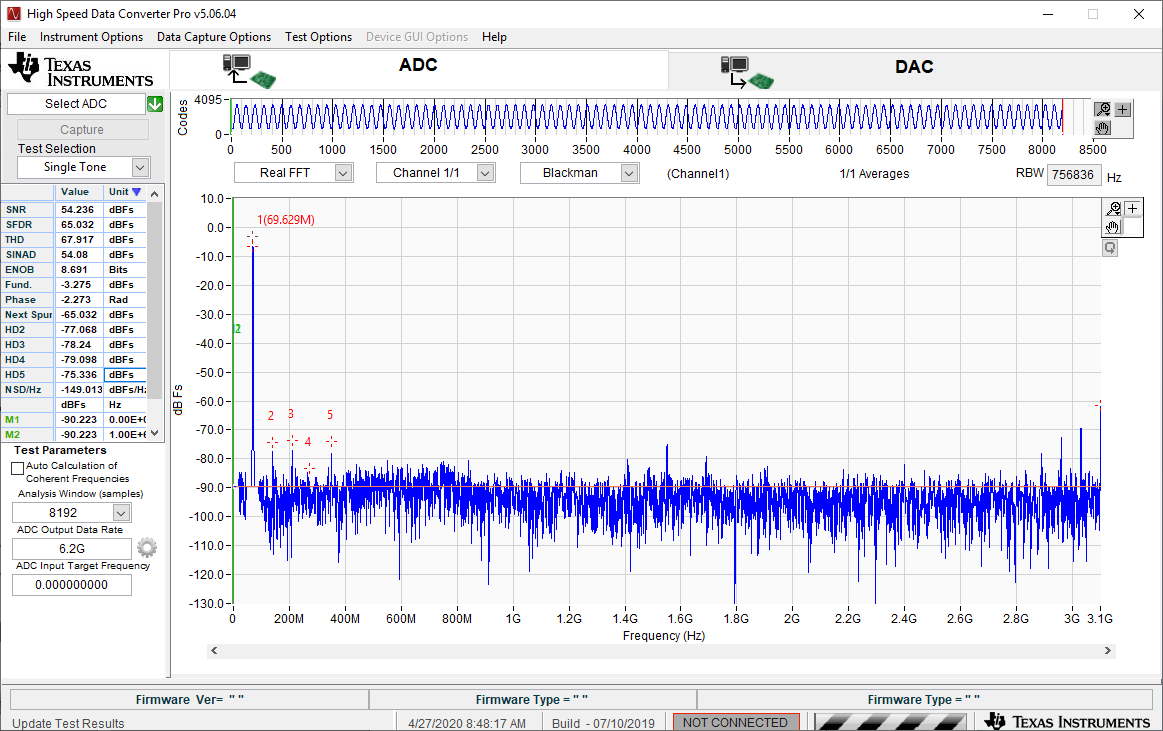 Figure 7-16 HSDC Pro Captured Data