SLAU920 November 2023 DAC80504 , DAC80508
3.2.1 Launching the Software
If installed in the default directory, then launch the DAC805xxEVM software by searching for DAC805xxEVM GUI in the Windows®Start menu.
Figure 4-3 shows the Device Setting configuration menu that is present when the GUI is launched. Select either the DAC80504 or DAC80508 device from the drop-down menu and click CONFIG. The software only supports one device at a time.
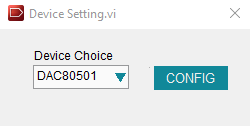 Figure 3-3 DAC805xxEVM GUI Device Settings at Launch
Figure 4-4 shows the GUI after launch with the DAC80504 register map loaded. Figure 4-5 shows the GUI after launch with the DAC80508 register map loaded.
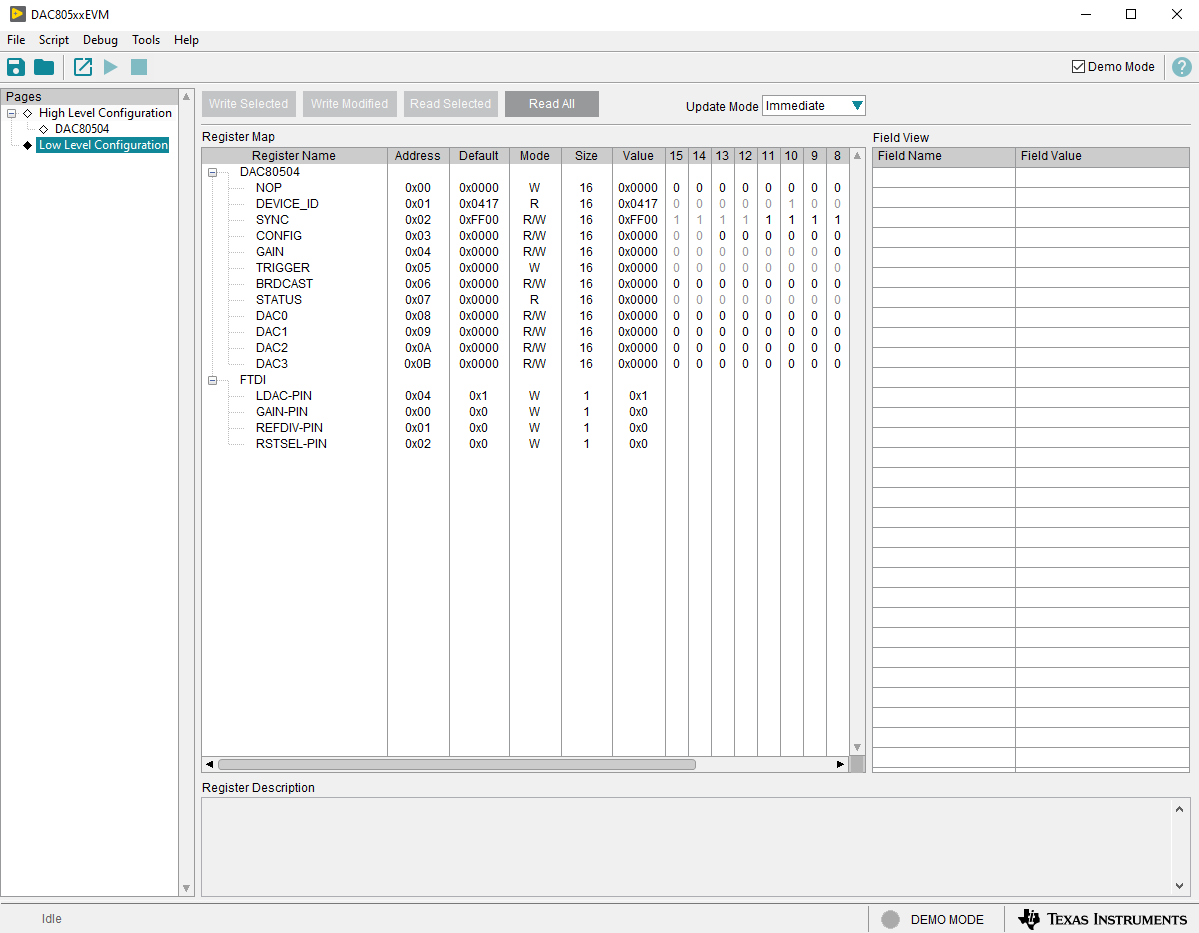 Figure 3-4 DAC805xxEVM GUI DAC80504 Selection at Launch
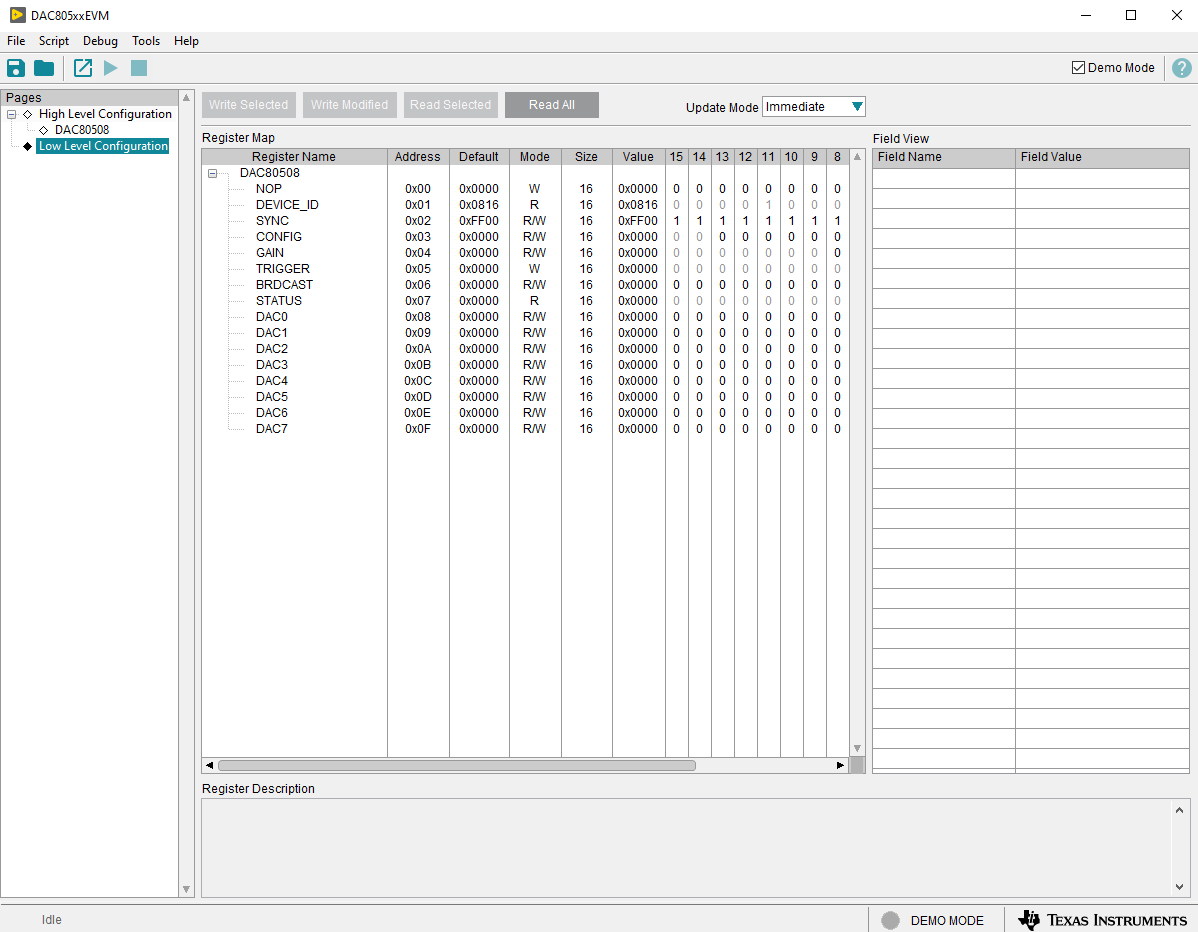 Figure 3-5 DAC805xxEVM GUI DAC80508
Selection at Launch
Figure 3-5 DAC805xxEVM GUI DAC80508
Selection at LaunchIf the FTDI controller is not connected to the computer when the software is launched, then the GUI defaults to demo mode. Figure 4-6 illustrates the bottom-left corner of the GUI that shows the hardware connection status: DEMO MODE or CONNECTED. After the FTDI controller is properly connected to the computer, restart the DAC805xxEVM software to detect the device.
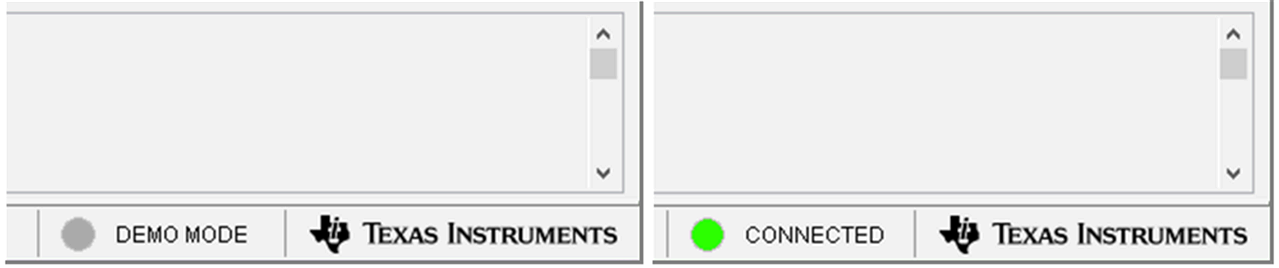 Figure 3-6 FTDI Digital Controller Connection Status