SBAU416C November 2022 – March 2025 ADS9813 , ADS9817
- 1
- Description
- Features
- 4
- 1Evaluation Module Overview
- 2Hardware
- 3Software
- 4Hardware Design Files
- 5Additional Information
- 6Related Documentation
- 7Revision History
2.2 ADS9813EVM and ADS9817EVM Quick Start Guide
The following instructions are a step-by-step guide to connecting the ADS9817EVM to the computer and evaluating the performance of the ADS9817. The same steps can be used for setting up the ADS9813EVM.
- Review the default jumper settings in Figure 2-1 and the power guidelines in Section 2.5.1.
- Physically connect J1 of the TSWDC155EVM to J27 of the ADS9817EVM. This component is the digital communications and power signal connection in default configuration.
- Set jumper J18 to the FMC_PWR position so the TSWDC155EVM provides power. Otherwise, set J18 to EXT_PWR and connect an external 5.2V to 5.5V supply on screw terminal connection J17.
- Bypass any external USB hub and connect the USB on the TSWDC155EVM directly to the computer.
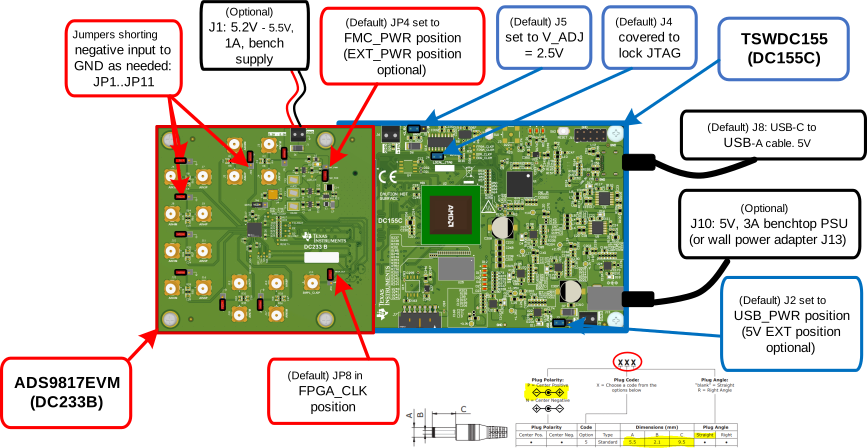 Figure 2-1 Connecting the
Hardware
Figure 2-1 Connecting the
Hardware- Install the GUI as described in Section 3.1.
- Install the necessary USB drivers as described in Section 3.1.1.
- Launch the GUI.
- For ADS9817EVM and GUI, press the
Initialize USB, Power Up, Program FPGA, and
Initialize ADS98xx buttons, in order from top to bottom, on the
Config tab to power up and configure the EVM, (see Section 3.2.1 for details).
The steps for ADS9813EVM and GUI can be found in Section 3.3.1.
- Connect a 10VPP, single-ended sine wave signal from a function generator to any AINxP SMA input connector.
- Press the EN SYNC button on the Capture tab.
- Select the number of samples to be at least 32k points, and choose the Hanning window type for best frequency domain results.
- Press the Start Capture button to collect and analyze the data displayed on the appropriate CHx tab; see Section 3.2 or Section 3.3 for more details.