SLUUBT4B June   2018  – June 2025 BQ40Z80


  1.   1
  2.   Description
  3.   Features
  4.   4
  5. 1Evaluation Module Overview
    1. 1.1 Introduction
    2. 1.2 Kit Contents
    3. 1.3 Ordering Information
    4. 1.4 BQ40Z80 and BQ771807 Circuit Module Performance Specification Summary
  6. 2Hardware
    1. 2.1 BQ40Z80EVM Quick Start Guide
      1. 2.1.1 Items Needed for EVM Setup and Evaluation
      2. 2.1.2 Software Installation
      3. 2.1.3 EVM Connections
      4. 2.1.4 Update Firmware
    2. 2.2 Battery Management Studio
      1. 2.2.1 Registers Screen
      2. 2.2.2 Setting Programmable bq40z80 Options
      3. 2.2.3 Calibration Screen
        1. 2.2.3.1 Voltage Calibration
        2. 2.2.3.2 Temperature Calibration
        3. 2.2.3.3 Current Calibration
      4. 2.2.4 Chemistry Screen
      5. 2.2.5 Firmware Screen
        1. 2.2.5.1 Programming the Flash Memory
        2. 2.2.5.2 Exporting the Flash Memory
      6. 2.2.6 Advanced Comm SMB Screen
  7. 3Hardware Design Files
    1. 3.1 bq40z80EVM Circuit Module Schematic
      1. 3.1.1 Precharge
      2. 3.1.2 Predischarge
      3. 3.1.3 LED Control
      4. 3.1.4 Emergency Shutdown
      5. 3.1.5 Testing Fuse-Blowing Circuit
    2. 3.2 Circuit Module Physical Layouts
      1. 3.2.1 Board Layout
      2. 3.2.2 bq40z80RevA Schematic
    3. 3.3 bq40z80EVM Bill of Materials
  8. 4Additional Information
    1. 4.1 Trademarks
  9. 5Related Documentation from Texas Instruments
  10. 6Revision History

Chemistry Screen

The chemistry file contains parameters that the simulations use to model the cell and the operating profile. Program a Chemistry ID that matches the cell into the device. Some of these parameters can be viewed in the Data Flash section of the Battery Management Studio.

Press the Chemistry button to select the Chemistry window.
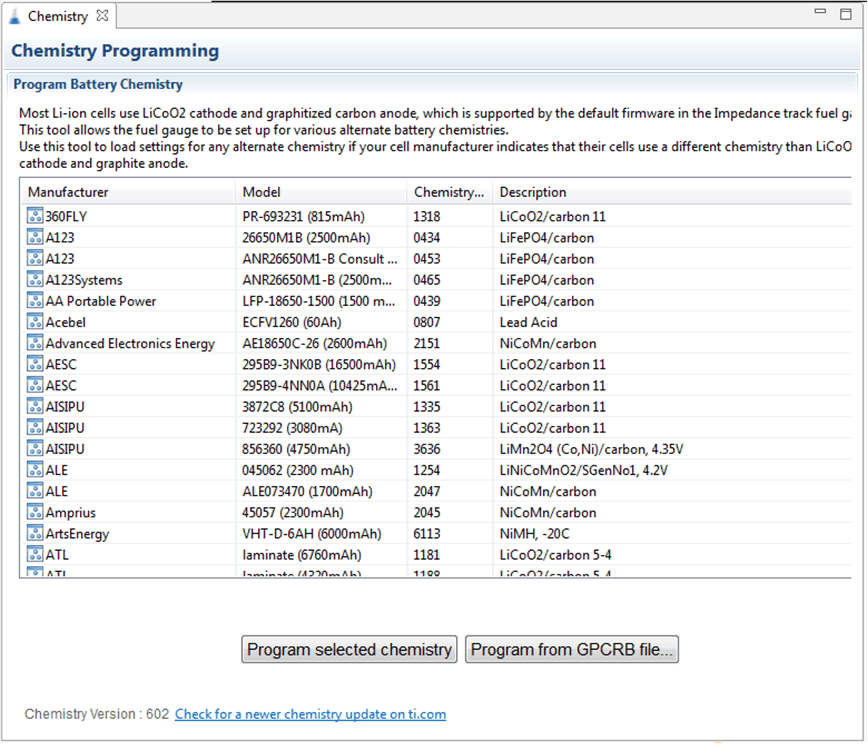
BQ40Z80EVM-020 Chemistry
                    Screen Figure 2-5 Chemistry Screen
  • The table can be sorted by clicking the desired column. for example: Click the Chemistry ID column header.
  • Select the ChemID that matches your cell from the table (see Figure 2-5).
  • Press the Update Chemistry in the Data Flash button to update the chemistry in the device.