SBAU474 December   2024 TAA3040


  1.   1
  2. Description
  3. Features
  4.   4
  5. Trademarks
  6. Evaluation Module Overview
    1. 4.1 Introduction
    2. 4.2 Kit Contents
    3. 4.3 Specifications
    4. 4.4 Device Information
  7. Hardware Overview
    1. 5.1 AC-MB Settings
      1. 5.1.1 Audio Serial Interface Settings
        1. 5.1.1.1 USB
        2. 5.1.1.2 AC-MB USB Audio Setting
        3. 5.1.1.3 Optical or Auxilary Analog Audio Input
        4. 5.1.1.4 External
      2. 5.1.2 AC-MB Power Supply
    2. 5.2 TAA3040EVM-PDK Hardware Settings
      1. 5.2.1 Line Inputs
      2. 5.2.2 Onboard Microphone Input
  8. Software Overview
    1. 6.1 PurePath Console 3 Installation
    2. 6.2 TAA3040EVM GUI Installation
      1. 6.2.1 Software Setup
  9. Quick Start
    1. 7.1 Configuring the Audio Serial Bus for the I2S Output
    2. 7.2 Ready for Use
    3. 7.3 Saving a Configuration
  10. System Overview
  11. Schematic and Bill of Materials
    1. 9.1 TAA3040EVM-K Schematic and Bill of Materials
      1. 9.1.1 ADCx140EVM-PDK Schematic
      2. 9.1.2 TAA3040EVM-K Bill of Materials
    2. 9.2 AC-MB Schematic and Bill of Materials
      1. 9.2.1 AC-MB Schematic
      2. 9.2.2 AC-MB Bill of Materials
  12. 10Matlab Audio Capture Example

Saving a Configuration

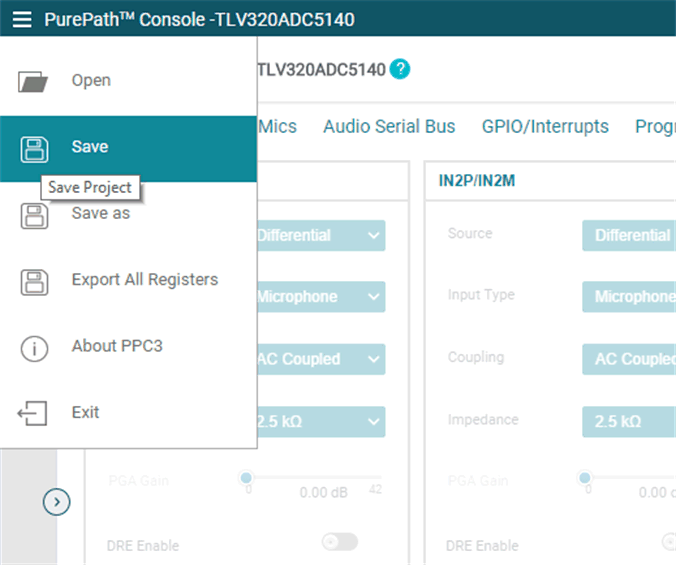
To save a configuration, as shown in Figure 5-8, click the upper left corner of the PPC3 window and select Save. The configuration is saved as a .ppc3 file. To load a saved configuration, click the upper left corner of the PPC3 window and select Open. Navigate to the location of the saved .ppc3 file, and click Open.
TAA3040 Saving a Configuration in PPC3Figure 7-9 Saving a Configuration in PPC3