SNLU226B February 2018 – April 2021
- 1 Introduction
- 2 Features
- 3 Application Diagram
- 4 Major Components
- 5 Quick Start Guide
- 6 Board Connections
- 7 Enable and Reset
- 8 ALP Software Setup
- 9 Troubleshooting ALP Software
- 10Typical Connection and Test Equipment
- 11Termination Device
- 12Typical Test Setup
- 13Equipment References
- 14Cable References
- 15Bill of Materials
- 16PCB Schematics
- 17Board Layout
- 18Revision History
9.2 ALP does not detect the EVM
If the following window opens after starting the ALP software, double check the hardware setup.
 Figure 9-5 ALP No Devices Error
It may also be that the USB2ANY driver is not installed. Check the device manager. There must be a “HID-compliant device” under the “Human Interface Devices” as shown below.
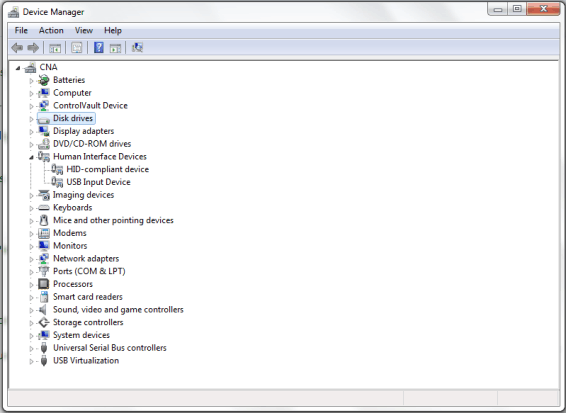 Figure 9-6 Windows 7, ALP USB2ANY Driver
The software must start with only “DS90UB960” or “DS90UB960_ENG” in the “Devices” pull down menu. If there are more devices then the software is most likely in demo mode. When the ALP is operating in demo mode there is a “(Demo Mode)” indication in the lower left of the application status bar as shown below.
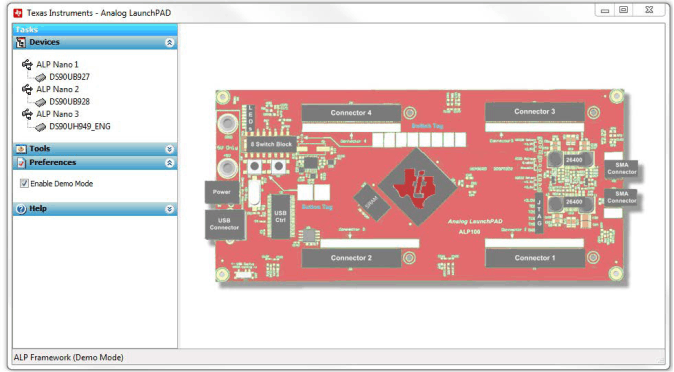 Figure 9-7 ALP in Demo Mode
Disable the demo mode by selecting the “Preferences” pull down menu and un-checking “Enable Demo Mode”.
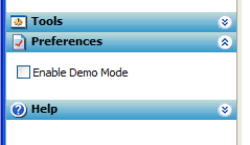 Figure 9-8 ALP Preferences Menu
After demo mode is disabled, the ALP software will poll the ALP hardware. The ALP software will update and have only “DS90UB960” or “DS90UB960_ENG” under the “Devices” pull down menu.
For additional information about using ALP software with FPD-Link III device, review the following training material: Use of Analog Launch Pad (ALP) GUI to configure the FPD-Link EVMs