SLUUD65 April 2025 BQ25630
3.1 Software Setup
Use the following to set up the EVM testing software:
- On the computer connected to the EV2400 interface board, launch Battery Management Studio (BQStudio). Select Charger as seen in Figure 3-1.
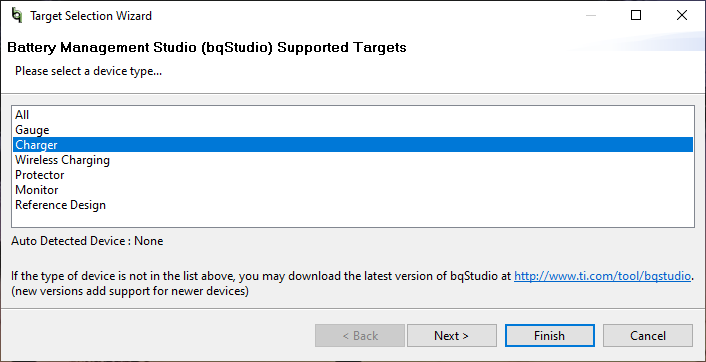 Figure 3-1 BQStudio Device Type Selection Window
 - Select the appropriate configuration file based on the device BQ25630 from the window shown in Figure 3-2.
 Figure 3-2 BQStudio Charger Selection Window (choose Charger_2_00-bq25630.bqz)
 - Choose
 , on the window that appears, and the main window of the BQ25630 EVM software appears, as shown in Figure 3-3.
 Figure 3-3 Main Window of BQ25630 EVM
Software
Figure 3-3 Main Window of BQ25630 EVM
Software