SLLA661 April 2025 MCF8315A , MCF8315C , MCF8315C-Q1 , MCF8315D , MCF8316A , MCF8316C-Q1 , MCF8316D , MCF8329A , MCF8329A-Q1
3 Getting Started with MOTORSTUDIO
Figure 3-1 shows the the landing page (starting point) of the GUI with different sections marked. Table 3-1 explains different sections in the GUI according to Figure 3-1
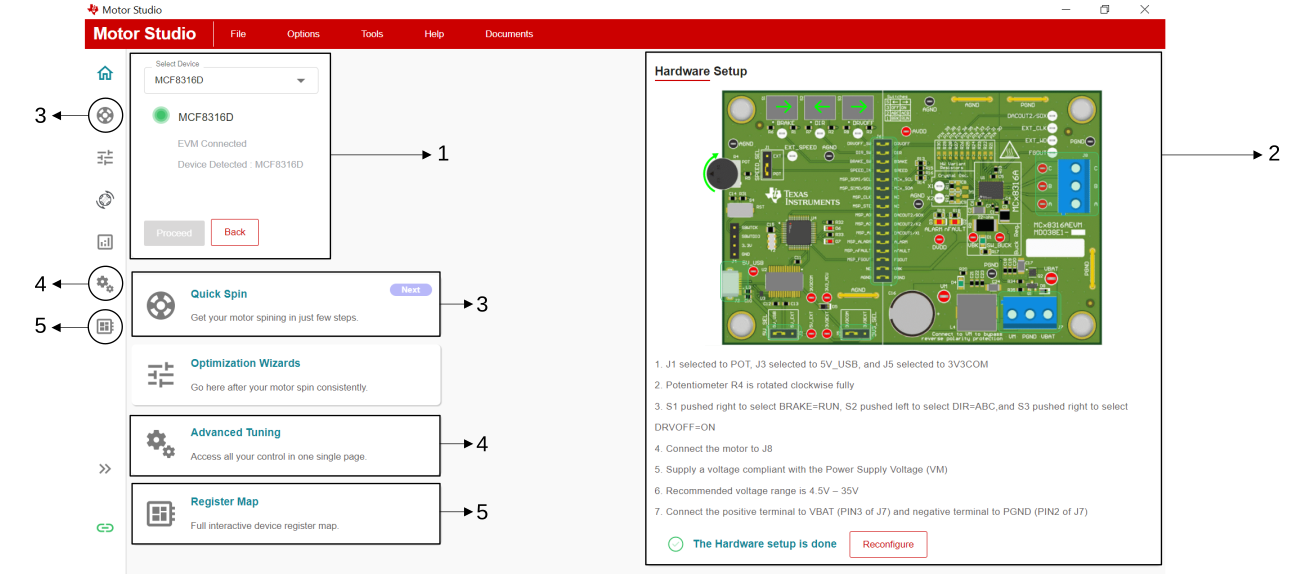 Figure 3-1 Landing Page
Information
Figure 3-1 Landing Page
Information| Section Number | Section | Description |
|---|---|---|
| 1 | Device Connection | Indicates the device selected and the device connection status. |
| 2 | Hardware Setup | Follow the instructions in this section to setup the EVM as per recommendations from TI |
| 3 | Quick Spin | This section enables the user to quickly spin the motor by following the recommendations on screen. Designed for users who want to quickly spin the motor without any advanced knowledge. |
| 4 | Advanced Tuning | Use this page to control all the register map settings at one place in a user friendly way |
| 5 | Register Map | Access the whole register map with each bit field accessible to the user to modify. Typically for advanced users |
Use the following steps to get started:
Step 1: Power the EVM by connecting a DC Power supply between VBAT and PGND. Set the supply voltage to be equal to the rated input DC voltage. Turn ON the DC Power supply.
Step 2: Launch MOTORSTUDIO (download from here).
Step 3: Select your device and click Proceed. A window similar to Figure 3-1. opens up for the selected device.
Step 4: Follow the instructions in the Hardware Setup section for selected device (Figure 3-1 is for reference only) by clicking on "Setup Now".
Step 5: Make sure the device connection status is green before proceeding further.
Step 6: Click File on top and click on Load register.
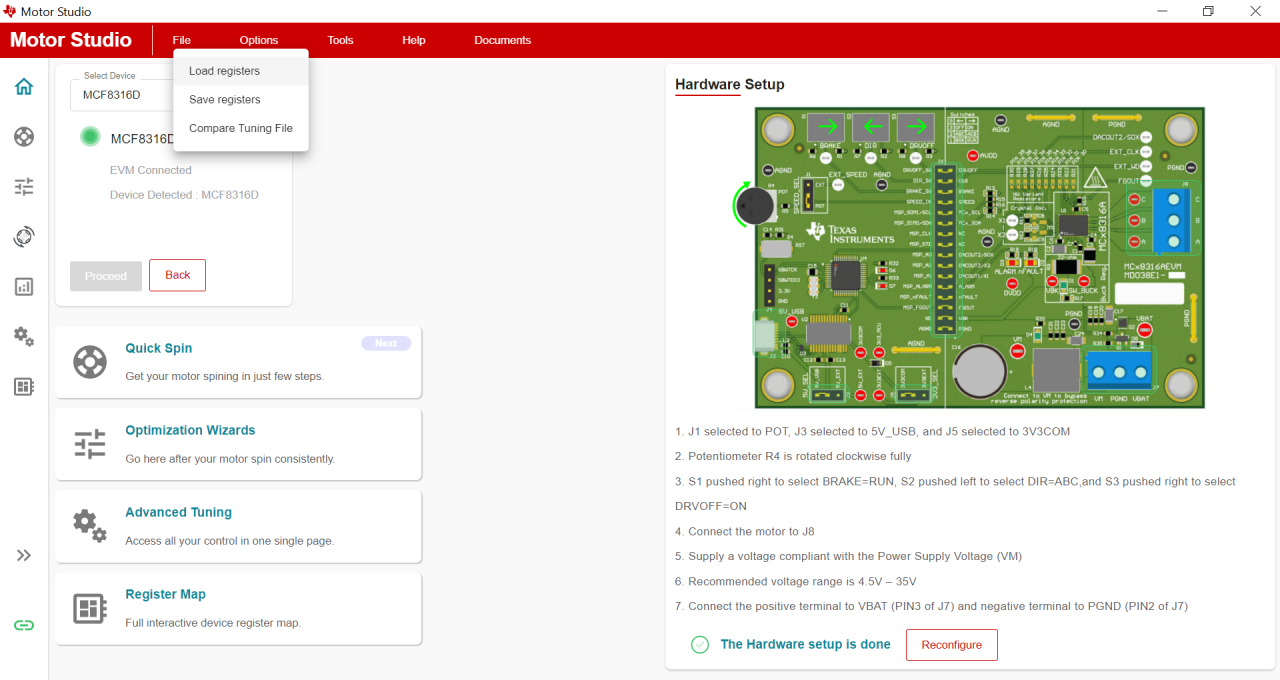 Figure 3-2 Loading Registers From .json
File
Figure 3-2 Loading Registers From .json
FileStep 6: Load an appropriate JSON file with respect to the required application or specifications.