SLUUD32A June 2024 – April 2025
- 1
- Description
- Features
- 4
- 1Evaluation Module Overview
- 2BQ41Z50EVM Quick Start Guide
- 3Hardware
- 4Software
- 5IT-DZT Guide To Gauging
- 6Hardware Design Files
- 7Additional Information
- 8Related Documentation
- 9Revision History
2.3 EVM Connections
This section covers the hardware connections for the EVM.
 Figure 2-1 BQ41Z50 Circuit Module Connection to Cells and System Load or Charger
Note: To avoid damaging the device and
the surrounding passive components, remove J2 before flashing a new firmware.
- Direct connection to the cells: 1N (BAT–), 1P, 2P, 3P, 4P (BAT+)
- Attach the cells as shown in Figure 2-1. It is best practice to start with the lowest cell in the stack (cell 1), then attach cells 2 through 4 in sequence. Other cell connection sequences can potentally damage the U1 and U4 components, which can cause the fuse to blow. If using a 2-cell or 3-cell configuration, confirm a short is placed across the unused voltage inputs. For more details, see Figure 2-2.
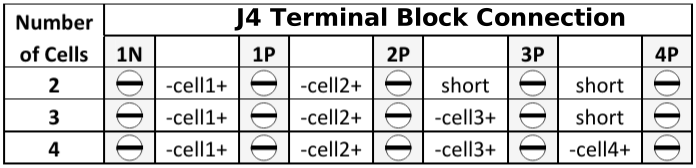 Figure 2-2 Cell Connection Configuration
Note:
The BQ41Z50 requires at least 2 attached cells for proper functionality.
- Serial communications port (SMBC, SMBD)
- Attach the communications interface adapter cable to J3 and to the SMB port on the EV2400 or EV2500.
- System load and charger connections across
PACK+ and PACK–
- Attach the load or power supply to the J1 terminal block. The positive load or power supply wire must be connected to at least one of the first two terminal block positions labeled PACK+. The ground wire for the load or power supply must be connected to the last terminal block positions labeled PACK–.
- System-present pin
(PRES/SHUTDN)
- To start charge or discharge test, connect the PRES/SHUTDN position on the J1 terminal block to PACK–. The PRES/SHUTDN pin is sampled by the BQ41Z50 every 250ms, so this connection will need to be kept for the duration of the test. The PRES/SHUTDN can be left open if the non-removable (NR) bit is set to 1 in the Settings:Configuration:DA Configuration register. To test sleep mode, disconnect the PRES/SHUTDN pin.
- Wake-up the device up from shutdown
(WAKE)
- Press the Wake push-button switch to temporarily connect Bat+ to Pack+. This applies voltage to the PACK pin on the BQ41Z50 to power-up the regulators and start the initialization sequence. If Settings:Configuration:DA Configuration is correctly configured to reflect the amount of cells in use, then this button only needs to be held for a few seconds. If not, it needs to be held until the setting has been changed.
- Parameter setup
- The default data flash settings configure the device for 3-series Li-Ion cells. The user must change the Settings:Configuration:DA Configuration register to set up the number of series cells to match the physical pack configuration. This provides basic functionality for the setup. Other data flash parameters must also be updated to fine tune the gauge to the pack. For help with setting the parameters, see BQ41Z50 Technical Reference Manual.