SLAU858B December 2023 – June 2025
3.1 Software Setup
This section provides the procedure for EVM software installation.
The EVM software is compatible with the Windows® 10 operating system. Before installing the software, make sure that the AFE881H1EVM is not connected to the local machine.
Download the latest version of the EVM graphical user interface (GUI) installer from the Order and start development subsection of the AFE881H1EVM tool folder on TI.com. Run the GUI installer to install the EVM GUI software on your local machine.
When the AFE88xH1EVM software is launched, an installation dialog window opens and prompts the user to select an installation directory. If left unchanged, Figure 3-1 shows that the software location defaults to C:\Program Files (x86)\Texas Instruments\AFE88xH1EVM.
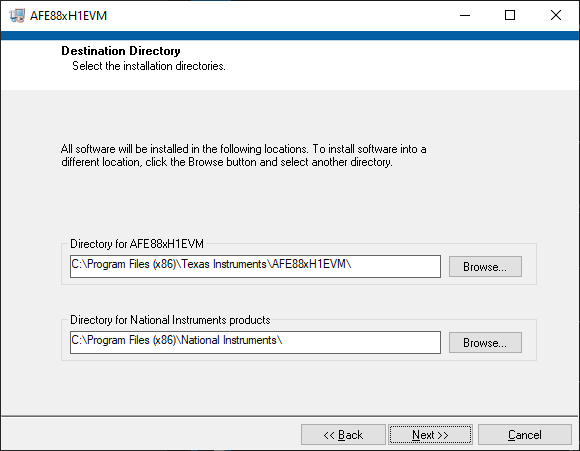 Figure 3-1 Software Installation
Path
Figure 3-1 Software Installation
PathThe EVM software also installs the Future Technology Devices International Limited (FTDI) USB drivers using a separate executable file, and automatically copies the required LabVIEW™ software files and drivers to the local machine. Figure 3-2 shows the FTDI USB drivers installation window that is automatically launched after the AFE88xH1EVM software installation is complete.
 Figure 3-2 FTDI USB Drivers