SBAU315B July   2018  – March 2025 ADS9224R , ADS9234R


  1.   1
  2.   ADS9224REVM-PDK
  3.   Trademarks
  4. 1Overview
    1. 1.1 ADS9224REVM-PDK Features
    2. 1.2 ADS9224REVM Features
  5. 2Analog Interface
    1. 2.1 Connectors for Signal Source
    2. 2.2 ADC Differential Input Signal Driver
      1. 2.2.1 Input Signal Path
    3. 2.3 ADS9224R Internal Reference
  6. 3Digital Interfaces
    1. 3.1 multiSPI for ADC Digital IO
  7. 4Power Supplies
  8. 5Setup
    1. 5.1 Default Jumper Settings
    2. 5.2 EVM Graphical User Interface (GUI) Software Installation
  9. 6Operation
    1. 6.1 EVM GUI Global Settings for ADC Control
    2. 6.2 Register Map Configuration Tool
    3. 6.3 Time Domain Display Tool
    4. 6.4 Spectral Analysis Tool
    5. 6.5 Histogram Tool
  10. 7ADS9224REVM Bill of Materials, PCB Layout, and Schematics
    1. 7.1 Bill of Materials
    2. 7.2 PCB Layout
    3. 7.3 Schematics
  11. 8Revision History

Operation

The following instructions are a step-by-step guide to connecting the ADS9224REVM-PDK to the computer and evaluating the performance of the ADS9224R:

  1. Connect the ADS9224REVM to the PHI, and install the two screws, as indicated in Figure 6-1.
  2. Use the provided USB cable to connect the PHI to the computer.
    • LED D5 on the PHI lights up, indicating that the PHI is powered up.
    • LEDs D1 and D2 on the PHI start blinking to indicate that the PHI is booted up and communicating with the PC.
     EVM-PDK Hardware Setup and LED IndicatorsFigure 6-1 EVM-PDK Hardware Setup and LED Indicators
  3. Double-click on the ADS92x4R EVM.exe, file to launch the ADS9224REVM-PDK GUI software. Figure 6-2 shows the ADS9224REVM software folder.
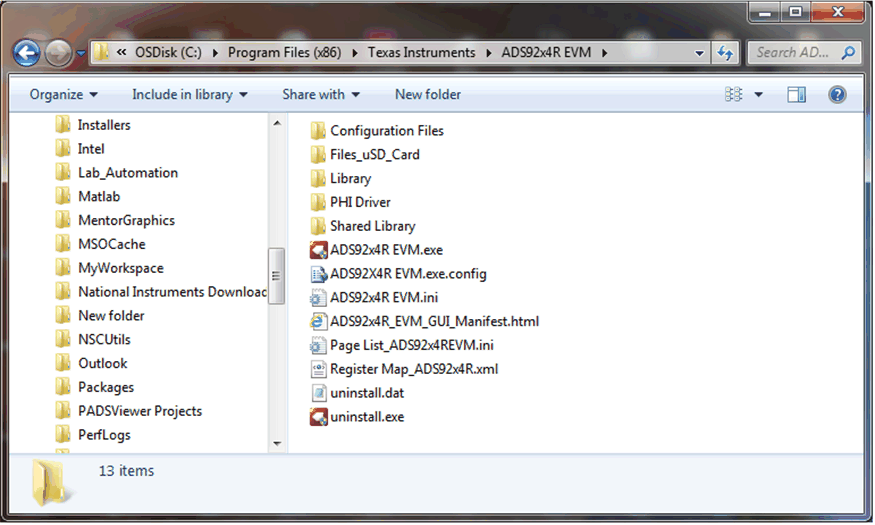
     Launch the EVM GUI SoftwareFigure 6-2 Launch the EVM GUI Software