SLAU966 February 2025 MSPM0C1103 , MSPM0C1103-Q1 , MSPM0C1104 , MSPM0C1104-Q1 , MSPM0C1105 , MSPM0C1106 , MSPM0C1106-Q1 , MSPM0G1106 , MSPM0G1107 , MSPM0G1506 , MSPM0G1507 , MSPM0G1518 , MSPM0G1519 , MSPM0G3106 , MSPM0G3106-Q1 , MSPM0G3107 , MSPM0G3107-Q1 , MSPM0G3506 , MSPM0G3506-Q1 , MSPM0G3507 , MSPM0G3507-Q1 , MSPM0G3518 , MSPM0G3518-Q1 , MSPM0G3519 , MSPM0G3519-Q1 , MSPM0H3216 , MSPM0L1105 , MSPM0L1106 , MSPM0L1116 , MSPM0L1117 , MSPM0L1227 , MSPM0L1227-Q1 , MSPM0L1228 , MSPM0L1228-Q1 , MSPM0L1303 , MSPM0L1304 , MSPM0L1304-Q1 , MSPM0L1305 , MSPM0L1305-Q1 , MSPM0L1306 , MSPM0L1306-Q1 , MSPM0L1343 , MSPM0L1344 , MSPM0L1345 , MSPM0L1346 , MSPM0L2228
- 1
- Abstract
- Trademarks
- 1MSPM0 Portfolio Overview
- 2Ecosystem and Migration
- 3Core Architecture Comparison
- 4Digital Peripheral Comparison
- 5Analog Peripheral Comparison
- 6References
2.5 Migration and Porting Example
To become more familiar with the TI ecosystem and explain how to best get started with MSPM0, this section describes the step-by-step migration process of a basic application.
To demonstrate the process of porting from NXP to MSPM0, this description includes the steps to port a basic low-power UART application from an NXP device to a MSPM0 device using an existing UART example as the starting point. This example starts with a UART example for an NXP KM35x device with a UART module.
- Chose the right MSPM0 MCU.
The first step of migration is to choose the correct MSPM0 device for the application. To do this, the portfolio section of this guide can be used to choose a MSPM0 family. To narrow down to a specific device use the product selection tool. When choosing a replacement for a NXP KM35x part, MSPM0 devices can match just about any functionality, so long as the correct replacement device is selected. It is important to ensure that the MSPM0 that you have selected has the peripheral set available for the code you want to migrate over. MSPM0 also offers many pin-to-pin scalable options, providing the ability to easily scale to larger or smaller memory devices without changing anything else in the system.
For purposes of this example, we have chosen the MSPM0G3507 as the best fit for his application.
- Select hardware and order an EVM.
Using an evaluation module (EVM) can expedite the migration process. For the MSPM0 MCUs, a LaunchPad kit is the easiest hardware to begin on. LaunchPad kits are easy to use because they come with a built-in programmer and are designed to enable rapid development.
The MSPM0L1105 has a LaunchPad development kit (LP-MSPM0G3507) that can be used for porting the software.
- Setup software IDE and SDK.
Before the software can be ported, a software development environment must be chosen and setup. Figure 2-5 shows all of the IDEs supported by MSPM0. The migration and porting process is similar for any IDE that is chosen. The latest version of the MSPM0 SDK should be used.
For this example, TI's CCS-Theia is the chosen IDE.
 Figure 2-5 Code Composer Studio IDE
 - Software porting.
When the environment is ready, start using the MSPM0 SDK. The MSPM0 SDK offers different layers for software development. For equivalents to NXP's device drivers, take a look at MSPM0's TI Drivers and Driverlib support. Most MSPM0 users find DriverLib level software is the best fit for their applications, so most MSPM0 software examples are also DriverLib based. This example uses DriverLib.
One option when porting a project is to try to replace each section of code with equivalent MSPM0 DriverLib APIs, but this is not generally the easiest path. Generally, it is best to first understand the application code being ported. Then start with the closest MSPM0 example project and modify it to match the original code functionality. This process is going to be shown below using a UART terminal example project from the MCUXpresso SDK_2.x_TWR-KM35Z75M, version 2.16.00.00 SDK. For more complex projects using many peripherals, this process is typically repeated for each peripheral.
- Understand the application.
The following description is from the NXP's SDK example "twrkm35z75m_lpuart_interrupt".
The lpuart_functioncal_interrupt example shows how to use lpuart driver functional API to receive data with interrupt method:
In this example, one lpuart instance connect to PC, the board will send back all characters that PC send to the board.
The first step is to understand the main settings for the MCU. This is generally clock speeds and power policies. In this example, the device does not utilize a low power mode. The specified system clock frequency is 72MHz and is generated from the device's 'OSC' or System oscillator. The UART peripheral clock is derived from the OSC. It is divided down to allow the UART to operate at 15200 baud, 8 data bits, 1 start and stop bit, no parity. No hardware flow control is used.
- Find the closest MSPM0 example.
Next step is to understand any differences between the UART modules for KM35x and MSPM0 and then find the closest example in the MSPM0 SDK. This is easily accomplished by referring to the UART section in Section 4. This section highlights differences between the UART modules and links to the UART-related MSPM0 SDK code examples. The closest example in the SDK for this example is probably uart_echo_interrupts_standby where the "UART RX/TX echos using interrupts while device is in STANDBY mode".
This MSPM0 example is similar, but not identical to the being ported. This example simply echoes the data received back on the device's TX pin. A small adjustment to the C code will allow us to match the original example.
- Import and modify the example.
Once a similar example is found, Open CCS and import the code example by going to Project > Import CCS Projects... and navigate it to the MSPM0 SDK example folder. Import the example. Here is the uart_echo_interrupts_standby example imported. This is a SysConfig project, so the main C file is simple. It first calls the SysConfig driverlib initialization which is a function autogenerated by SysConfig to configures the device. Then, it enables the UART interrupt. Finally, it goes to sleep waiting for any UART transaction. If it receives a UART transaction, it responds with "Hello World!".
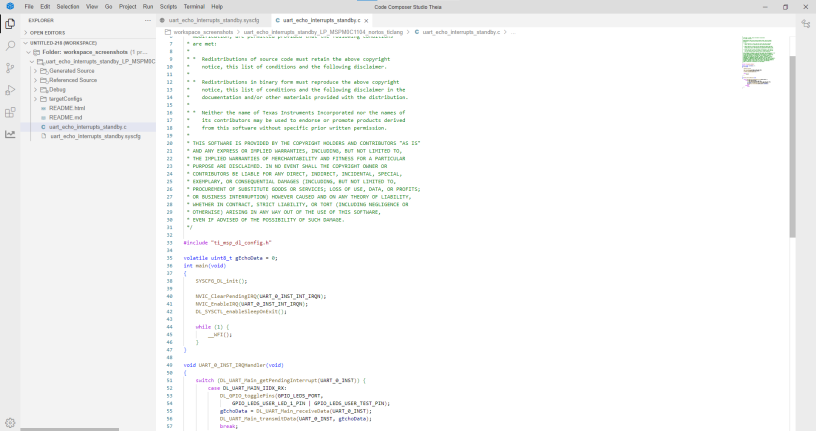 Figure 2-6 uart_echo_interrupts_standby
To see the SysConfig configuration, open the .syscfg file, which opens on the SYSCTL tab by default. For detailed guide on using SysConfig, see the SysConfig Guide in the in the MSPM0 SDK.
This example already has the UART peripheral set up, so there is no need to change any of the configurations found in this file. If desirable, it is possible to change the settings like the clock source, clock divider, the target baud rate, or others. For this migration demonstration, the configuration will be left the same.
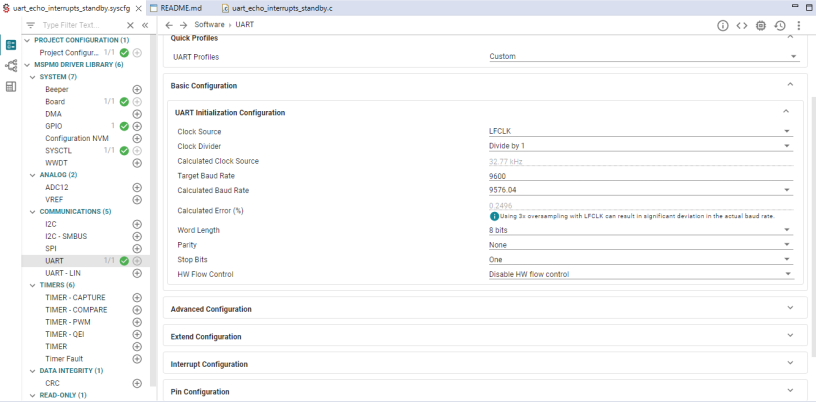 Figure 2-7 Sysconfig UART Tab
This example also utilizes some GPIOs that are not featured in the NXP example. These GPIOs are simply used for debugging purposes, and one of them drives and LED. These can be left in for the sake of the demonstration, or removed if this is preferable.
 Figure 2-8 Sysconfig GPIO Tab
When the project is saved and rebuilt, SysConfig updates the ti_msp_dl_config.c and ti_msp_dl_config.h files for the example. At this point, the example hardware configuration has been modified to match the full functionality of the original software being ported. The only remaining effort is application-level software to check for incoming UART bytes to toggle the LED and respond with "Hello World!". This is accomplished by editing a small amount of code in the uart_echo_interrupts_standby.c file.
 Figure 2-9 uart_echo_interrupts_standby.c
Two changes are made to the application code. First, the message array must be initialized so the device can respond to UART messages properly. For this, the following line is inserted below the initialization of gEchoData:
static uint8_t gMessage[12] = {'H', 'e', 'l', 'l', 'o', ' ', 'W', 'o', 'r', 'l', 'd', '!'};The second step actually processes the data send using a for loop and a blocking version of the UART transmit function, so only one character is sent at a time and there is no data collision in the Tx buffer. This is accomplished by adding the below code to the UART RX ISR:
for(int i = 0; i < 12; i++){
                DL_UART_Main_transmitDataBlocking(UART_0_INST, gMessage[i]);
}
- Understand the application.
- Debug and verify.
The following figures demonstrate the correct functionality of the code example. As shown in the first image, when a UART character is sent to the LP-MSPM0G3507 using a terminal program on a PC, the device responds with "Hello World!".
In the second image, logic analyzer captures show the device's RX and TX line, showing the incoming character, then the outgoing "Hello World!".
With each received character, the on-board LED will toggle on and off.
 Figure 2-10 Logic Analyzer Capture
 Figure 2-11 Serial Terminal
The software has successfully been ported! If this was just the first peripheral of many, continue to repeat this process and use SysConfig to combine each block.