SPRADN1 August 2025 F28E120SC , F29H850TU , F29H859TU-Q1 , TMS320F2800132 , TMS320F2800133 , TMS320F2800135 , TMS320F2800137 , TMS320F2800152-Q1 , TMS320F2800153-Q1 , TMS320F2800154-Q1 , TMS320F2800155 , TMS320F2800155-Q1 , TMS320F2800156-Q1 , TMS320F2800157 , TMS320F2800157-Q1 , TMS320F280021 , TMS320F280021-Q1 , TMS320F280023 , TMS320F280023-Q1 , TMS320F280023C , TMS320F280025 , TMS320F280025-Q1 , TMS320F280025C , TMS320F280025C-Q1 , TMS320F280033 , TMS320F280034 , TMS320F280034-Q1 , TMS320F280036-Q1 , TMS320F280036C-Q1 , TMS320F280037 , TMS320F280037-Q1 , TMS320F280037C , TMS320F280037C-Q1 , TMS320F280038-Q1 , TMS320F280038C-Q1 , TMS320F280039 , TMS320F280039-Q1 , TMS320F280039C , TMS320F280039C-Q1 , TMS320F280040-Q1 , TMS320F280040C-Q1 , TMS320F280041 , TMS320F280041-Q1 , TMS320F280041C , TMS320F280041C-Q1 , TMS320F280045 , TMS320F280048-Q1 , TMS320F280048C-Q1 , TMS320F280049 , TMS320F280049-Q1 , TMS320F280049C , TMS320F280049C-Q1 , TMS320F28075 , TMS320F28075-Q1 , TMS320F28374D , TMS320F28374S , TMS320F28375D , TMS320F28375S , TMS320F28375S-Q1 , TMS320F28376D , TMS320F28376S , TMS320F28377D , TMS320F28377D-EP , TMS320F28377D-Q1 , TMS320F28377S , TMS320F28377S-Q1 , TMS320F28379D , TMS320F28379D-Q1 , TMS320F28379S , TMS320F28384D , TMS320F28384S , TMS320F28386D , TMS320F28386S , TMS320F28388D , TMS320F28388S , TMS320F28P550SG , TMS320F28P550SJ , TMS320F28P559SG-Q1 , TMS320F28P559SJ-Q1 , TMS320F28P650DH , TMS320F28P650DK , TMS320F28P650SH , TMS320F28P650SK , TMS320F28P659DH-Q1 , TMS320F28P659DK-Q1 , TMS320F28P659SH-Q1
4.3 CCS Steps
- The SysConfig tool autogenerates a bat file (called gui_setup.bat) that copies the autogenerated GUI composer files to the correct location in the CCS installation so that the MCU Signal Sight GUI can be launched from the CCS menu as a plugin. To run this bat file automatically every time to build the project, follow the steps below:
- Right-click on the project name and select Properties.
- Navigate to General → Variables.
- Click (+) and add a variable called GUI_SUPPORT and set the value to 1. The Type can be left as String.
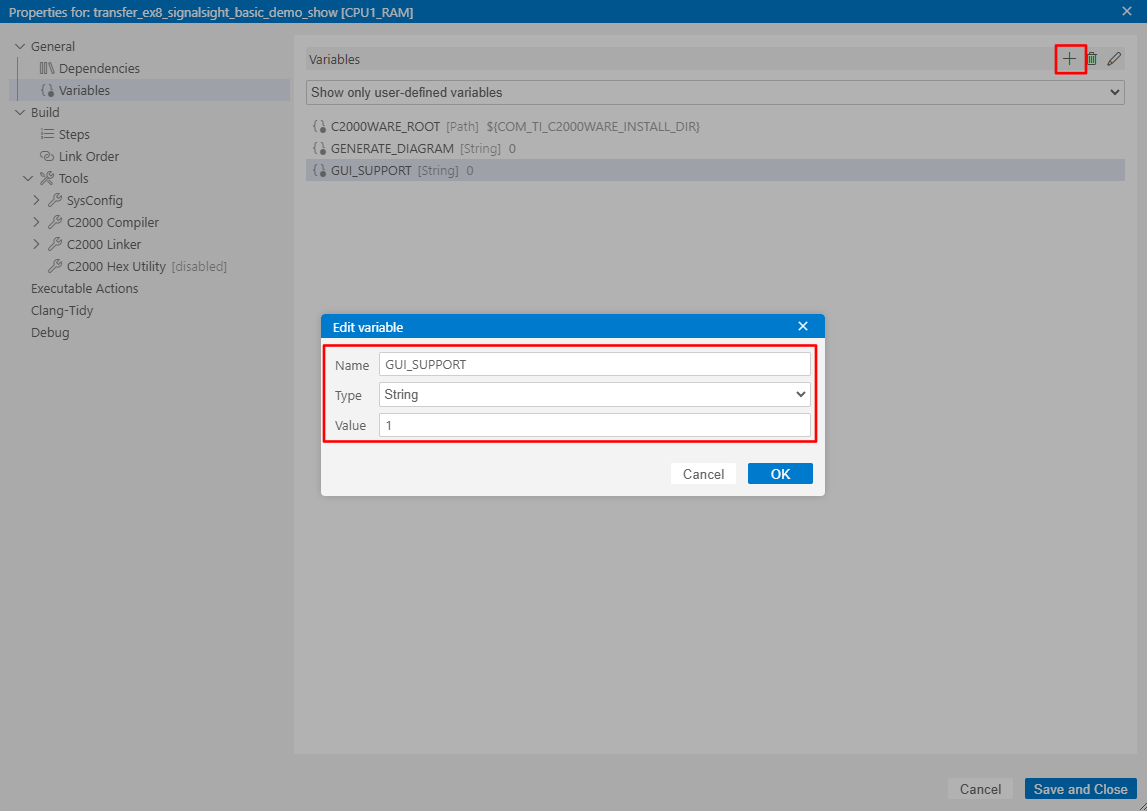 Figure 4-9 Add GUI_SUPPORT User_Defined Variable
 - Navigate in the Properties menu to Build → Steps.
- Add an entry with the following
line:
if ${GUI_SUPPORT} == 1 ${BuildDirectory}\syscfg\gui_setup.bat Figure 4-10 Add Post-Build Step
- At this point, users are ready to build the
project with the MCU Signal Sight support added. Right-click on the project name
in CCS and select Build Projects.
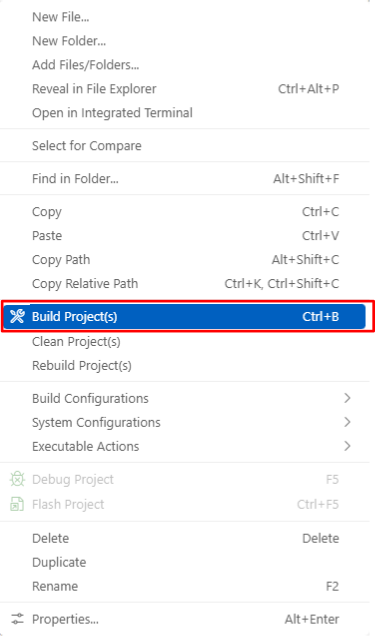 Figure 4-11 Build the CCS Project
 - Once the project build is complete, do a refresh
of CCS by navigating to Help → Reload Window. This updates the plugins
populated in the View → Plugins folder of CCS.
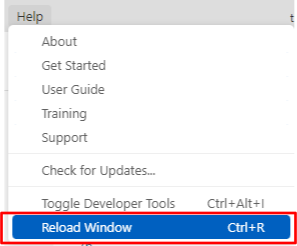 Figure 4-12 Reload the CCS Window
 - Load the application code onto the device by doing either right-click → Debug Project (starting a CCS debug session) or Run → Flash Project (loading the program without starting a debug session).
- Navigate to View → Plugins → {GUI Name set in 3} to launch the MCU Signal Sight GUI.
- Click the SELECT COM PORT button and follow the steps below.
- Select the COM port from the Port
drop-down menu that matches the COM port used by the user's board in the
PC Device Manager (Enter Device Manager into the PC Search bar).
For most LaunchPads and controlCARDs, the COM port number is under the
name Ports (COM & LPT) → XDS110 Class Application/User UART
(COM#).
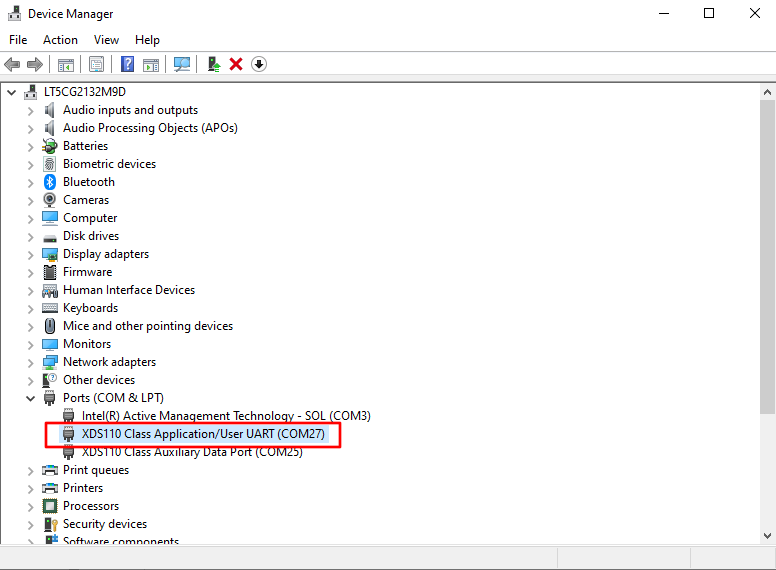 Figure 4-13 COM Port Number From Device Manager
 - Select or input the Baud Rate matching the input chosen in 2.
- Click OK.
- Select the COM port from the Port
drop-down menu that matches the COM port used by the user's board in the
PC Device Manager (Enter Device Manager into the PC Search bar).
For most LaunchPads and controlCARDs, the COM port number is under the
name Ports (COM & LPT) → XDS110 Class Application/User UART
(COM#).
- Click CONNECT in the GUI and wait a few seconds for the initial communication handshake to take place.
- Toggle on a channel and see the data begin plotting in the window.Note: If any data being plotted in the window, then check the trigger settings and verify that the values of the variables in the code are actively changing.
See Section 7 if there are any issues with these steps.