SPRADN1 August 2025 F28E120SC , F29H850TU , F29H859TU-Q1 , TMS320F2800132 , TMS320F2800133 , TMS320F2800135 , TMS320F2800137 , TMS320F2800152-Q1 , TMS320F2800153-Q1 , TMS320F2800154-Q1 , TMS320F2800155 , TMS320F2800155-Q1 , TMS320F2800156-Q1 , TMS320F2800157 , TMS320F2800157-Q1 , TMS320F280021 , TMS320F280021-Q1 , TMS320F280023 , TMS320F280023-Q1 , TMS320F280023C , TMS320F280025 , TMS320F280025-Q1 , TMS320F280025C , TMS320F280025C-Q1 , TMS320F280033 , TMS320F280034 , TMS320F280034-Q1 , TMS320F280036-Q1 , TMS320F280036C-Q1 , TMS320F280037 , TMS320F280037-Q1 , TMS320F280037C , TMS320F280037C-Q1 , TMS320F280038-Q1 , TMS320F280038C-Q1 , TMS320F280039 , TMS320F280039-Q1 , TMS320F280039C , TMS320F280039C-Q1 , TMS320F280040-Q1 , TMS320F280040C-Q1 , TMS320F280041 , TMS320F280041-Q1 , TMS320F280041C , TMS320F280041C-Q1 , TMS320F280045 , TMS320F280048-Q1 , TMS320F280048C-Q1 , TMS320F280049 , TMS320F280049-Q1 , TMS320F280049C , TMS320F280049C-Q1 , TMS320F28075 , TMS320F28075-Q1 , TMS320F28374D , TMS320F28374S , TMS320F28375D , TMS320F28375S , TMS320F28375S-Q1 , TMS320F28376D , TMS320F28376S , TMS320F28377D , TMS320F28377D-EP , TMS320F28377D-Q1 , TMS320F28377S , TMS320F28377S-Q1 , TMS320F28379D , TMS320F28379D-Q1 , TMS320F28379S , TMS320F28384D , TMS320F28384S , TMS320F28386D , TMS320F28386S , TMS320F28388D , TMS320F28388S , TMS320F28P550SG , TMS320F28P550SJ , TMS320F28P559SG-Q1 , TMS320F28P559SJ-Q1 , TMS320F28P650DH , TMS320F28P650DK , TMS320F28P650SH , TMS320F28P650SK , TMS320F28P659DH-Q1 , TMS320F28P659DK-Q1 , TMS320F28P659SH-Q1
4.1 SysConfig Steps
The MCU Signal Sight tool is built into the Sysonfig GUI, so having a SysConfig file in the project is required to use the tool. If users already have a SysConfig file (*.syscfg) in the project, then refer to C2000 SysConfig to learn how to add a SysConfig file to an existing project.
- Double-click the SysConfig file inside CCS to launch SysConfig
- Scroll down to the MCU CONTROL CENTER AND TRANSFER section of modules and click the (+) next to the MCU Signal Sight module
 Figure 4-1 Add SysConfig Module
 - (Optionally) Customize the name of the GUI module instance in Name
- Input a Target Buffer Size. This configures the size of the float array used in device memory to buffer captured data. Larger buffer size selections enable a faster rate of data capture.
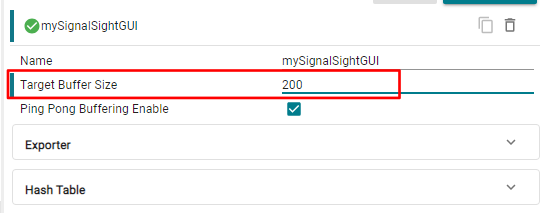 Figure 4-2 Input Buffer SizeNote: For devices with limited on-chip memory or applications with high memory utilization, large buffer sizes can result in a program does not fit into available memory... build error, meaning the array cannot fit in the available device memory. Reduce the Target Buffer Size value until the build error is no longer present.
 - Open the Exporter module drop-down menu inside the MCU Signal Sight SysConfig module
- (Optionally) Modify the name of the packaging layer in Name
- Open the SCI Transfer Communication Link drop-down menu inside the Exporter module
- (Optionally) Modify the name of the communication layer in Name
- (Optionally) Modify the SCI(UART) baud rate used by the application in Baud Rate. Higher baud rate selections enable a fast rate of data capture. Note: In some cases, high baud rates can result in a loss of data integrity. This version of the tool has been tested thoroughly at a maximum baud rate of 921600 bits/second. Use caution with all higher baud rate selections.
- Open the PinMux submodule drop-down menu inside the Exporter → SCI Transfer Communication Link submodule
 Figure 4-3 Configure SCI GPIOs
- Select the desired TX and RX GPIO pins to be connected to the UART-to-USB bridge. If using a LaunchPad or controlCARD, then add board support to the project (see C2000™ SysConfig: Board Support) and select the pins connected to the XDS.
- Open the Hash Table module drop-down menu inside the MCU Signal Sight SysConfig module
- (Optionally) Modify the name of the hash table in Name
- Add (+) a Hash Table Element for each variable in the user's main application that is enabled for plotting in the virtual oscilloscope. Modify the Name of each element to match the variable name in the application. Figure 4-4 Add Hash ElementsNote: The variable name must match to the application variable name exactly and the variable must be a global 32-bit float.