SPRADM0 August 2025 F28E120SC , F29H850TU , F29H859TU-Q1 , TMS320F2800132 , TMS320F2800133 , TMS320F2800135 , TMS320F2800137 , TMS320F2800152-Q1 , TMS320F2800153-Q1 , TMS320F2800154-Q1 , TMS320F2800155 , TMS320F2800155-Q1 , TMS320F2800156-Q1 , TMS320F2800157 , TMS320F2800157-Q1 , TMS320F280021 , TMS320F280021-Q1 , TMS320F280023 , TMS320F280023-Q1 , TMS320F280023C , TMS320F280025 , TMS320F280025-Q1 , TMS320F280025C , TMS320F280025C-Q1 , TMS320F280033 , TMS320F280034 , TMS320F280034-Q1 , TMS320F280036-Q1 , TMS320F280036C-Q1 , TMS320F280037 , TMS320F280037-Q1 , TMS320F280037C , TMS320F280037C-Q1 , TMS320F280038-Q1 , TMS320F280038C-Q1 , TMS320F280039 , TMS320F280039-Q1 , TMS320F280039C , TMS320F280039C-Q1 , TMS320F280040-Q1 , TMS320F280040C-Q1 , TMS320F280041 , TMS320F280041-Q1 , TMS320F280041C , TMS320F280041C-Q1 , TMS320F280045 , TMS320F280048-Q1 , TMS320F280048C-Q1 , TMS320F280049 , TMS320F280049-Q1 , TMS320F280049C , TMS320F280049C-Q1 , TMS320F28075 , TMS320F28075-Q1 , TMS320F28374D , TMS320F28374S , TMS320F28375D , TMS320F28375S , TMS320F28375S-Q1 , TMS320F28376D , TMS320F28376S , TMS320F28377D , TMS320F28377D-EP , TMS320F28377D-Q1 , TMS320F28377S , TMS320F28377S-Q1 , TMS320F28379D , TMS320F28379D-Q1 , TMS320F28379S , TMS320F28384D , TMS320F28384S , TMS320F28386D , TMS320F28386S , TMS320F28388D , TMS320F28388S , TMS320F28P550SG , TMS320F28P550SJ , TMS320F28P559SG-Q1 , TMS320F28P559SJ-Q1 , TMS320F28P650DH , TMS320F28P650DK , TMS320F28P650SH , TMS320F28P650SK , TMS320F28P659DH-Q1 , TMS320F28P659DK-Q1 , TMS320F28P659SH-Q1
4 GUI Creation
The GUI layer leverages GUI Composer on the PC and can be run inside the CCS environment. For more information regarding GUI Composer, refer to the GUI Composer Documentation. The following files are generated to create the GUI composer application once the MCU Control Center Sysconfig module is added to the project.
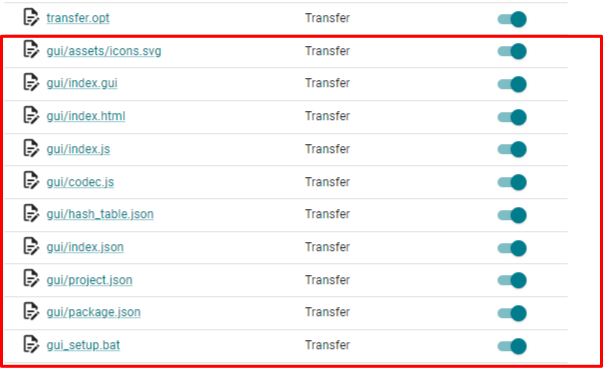 Figure 4-1 SysCfg Generated GUI Layer
Files
Figure 4-1 SysCfg Generated GUI Layer
Files The following post build step is required for generating the custom GUI application for CCS. Navigate to Properties -> General -> Variables for the specific project and add a variable called GUI_SUPPORT.
 Figure 4-2 Open Project Properties
 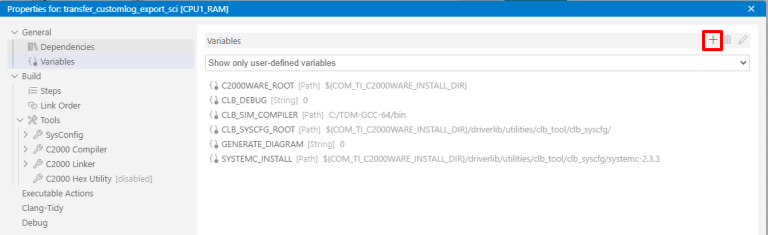 Figure 4-3 Add CCS Variable
 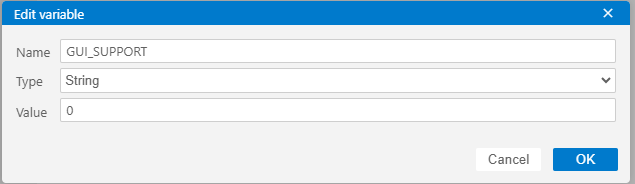 Figure 4-4 GUI_SUPPORT Variable Added
 Additionally, in the project properties, add the following line to the post build step by going to Build → Steps:
if ${GUI_SUPPORT} == 1 ${BuildDirectory}\syscfg\gui_setup.batBefore building the project, make sure the GUI_SUPPORT variable is set to 1. This copies the GUI files autogenerated by Sysconfig into the proper location in the CCS installation folder at the end of each project build. Once placed in that folder, the GUI application can be successfully launched straight from inside the CCS environment. Once built, the autogenerated GUI project name matches the name selected in the Sysconfig setting below.
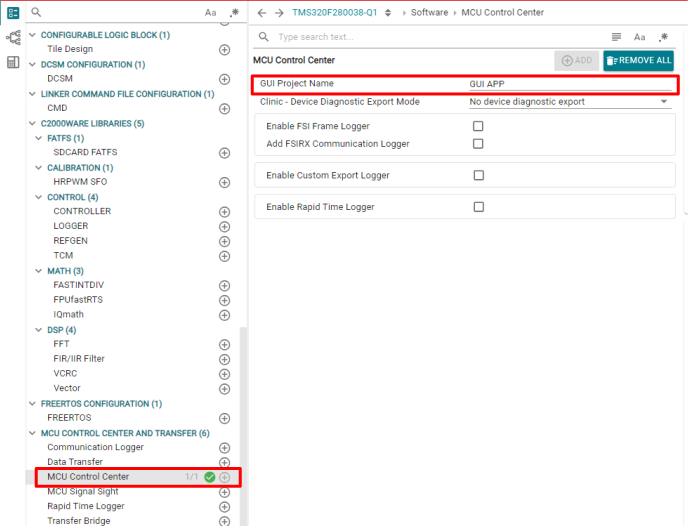 Figure 4-5 Plugin Name
After building the project, refresh the CCS View to see the newly generated GUI in the CCS plugins dropdown. Go to Help → Reload Window.
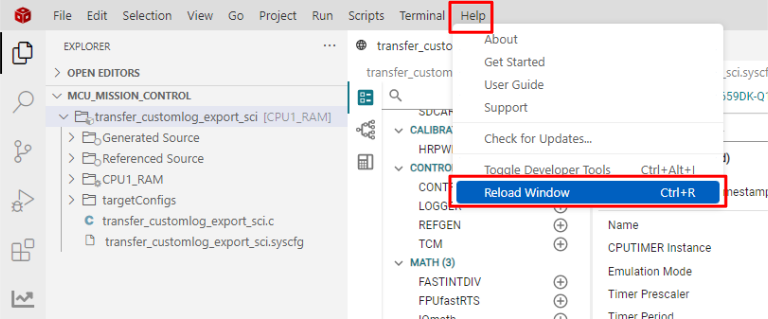 Figure 4-6 Reload Window To See Generated
Plugins
Figure 4-6 Reload Window To See Generated
Plugins To open the integrated GUI application, go to View → Plugins → {NameOfGUI}. The GUI opens up in CCS once clicked on.
 Figure 4-7 View GUI